
Skip to content
  • Blog
  • Docs
  • Documentation
  • Imprint
SKYVVA Integration App – Documentation
SKYVVA Integration App - Documentation
  • Documentation
  • Zurück zur Webseite
  • Back to website
SKYVVA Integration App – Documentation
SKYVVA Integration App - Documentation
Popular Search how tohow to useagenthowdatarestformulacustombatchstore

SAP PI/PO Adapter

Tutorials (Lightning)

Agent Old Administration Guide

SAP Release Notes

Agent Release Notes

Agent - New Administration Guide

SAP CPI Adapter

SKYVVA Administration Guide (Lightning)

SKYVVA Release Notes

SAP/ERP | S4/HANA (Latest Version) Adapter

SAP-ERP (Old Version) Adapter

  • How to get the Salesforce Id return back in the response interface using Agent SAP ERP Adapter?
    • 1. How to get the Salesforce Id return back in the response interface using Agent SAP ERP Adapter?
  • How to invoke IDOC XML using Agent S/4 HANA Adapter?
    • 1. How to invoke IDOC XML using Agent S/4 HANA Adapter?
  • How to invoke Asynchronous BAPI XML using Agent SAP ERP Adapter?
    • 1. How to invoke Asynchronous BAPI XML using Agent SAP ERP Adapter?
  • How to invoke BAPI XML using Agent SAP ERP Adapter?
    • 1. How to invoke BAPI XML using Agent SAP ERP Adapter?
  • How to invoke BAPI XML using Agent SAP S/4 HANA Adapter?
    • 1. How to invoke BAPI XML using Agent SAP S/4 HANA Adapter?
  • How to invoke IDOC XML using Agent SAP ERP Adapter?
    • 1. How to invoke IDOC XML using Agent SAP ERP Adapter?
  • Prerequisite for SKYVVA solution
    • 1. Prerequisite for SKYVVA solution
  • Import/Deploy ABAP Transport in SAP
    • 2. Import/Deploy ABAP Transport in SAP
  • Certificate for Secured Communications
    • 3. Certificate for Secured Communications
  • Create SAP Adapter in Salesforce – Classic Version
    • 4. Configuration for SAP Adapter
    • 5. Create SAP Adapter in Salesforce – Classic Version
  • Generic Inbound Configuration
    • 1. Generic Inbound Configuration
  • How to develop inbound interface using BAPI with the multi-itab adapter synchronously?
    • 1. How to develop inbound interface using BAPI with the multi-itab adapter synchronously?
  • How to develop inbound interface using IDoc asynchronously?
    • 1. How to develop inbound interface using IDoc asynchronously?
  • How to develop Outbound interface using BAPI asynchronously?
    • 1. How to develop Outbound interface using BAPI asynchronously?
  • How to develop Outbound interface using BAPI synchronously?
    • 1. How to develop Outbound interface using BAPI synchronously?
  • How to develop Outbound interface using IDoc asynchronously?
    • 1. How to develop Outbound interface using IDoc asynchronously?
  • How to invoke Asynchronous BAPI XML using Skyvva SAP ERP Adapter?
    • 1. How to invoke Asynchronous BAPI XML using Skyvva SAP ERP Adapter?
  • Configuration of IService
    • 1. Configuration of IService
  • Configure Enterprise Service
    • 1. Configure Enterprise Service
  • How to invoke SAP SOAP API using Skyvva SOAP Adapter?
    • 1. How to invoke SAP SOAP API using Skyvva SOAP Adapter?
  • How to invoke SAP REST API using Skyvva REST Adapter?
    • 1. How to invoke SAP REST API using Skyvva REST Adapter?
  • How to invoke IDOC XML using SKYVVA SOAP Adapter?
    • 1. How to invoke IDOC XML using SKYVVA SOAP Adapter?
  • How to invoke IDOC XML using SAP S/4 HANA Adapter?
    • 1. How to invoke IDOC XML using SAP S/4 HANA Adapter?
  • Skyvva configuration generic Information
    • 1. Skyvva configuration generic Information
  • How to invoke BAPI XML using SAP S/4 HANA Adapter?
    • 1. How to invoke BAPI XML using SAP S/4 HANA Adapter?
  • How to invoke IDOC XML using SAP ERP Adapter?
    • 1. How to invoke IDOC XML using SAP ERP Adapter?
  • How to invoke BAPI XML using SAP ERP Adapter?
    • 1. How to invoke BAPI XML using SAP ERP Adapter?

Mule Adapter

Migration from SAP-PO SOAP Skyvva connector to REST connector module

View Categories
  • Home
  • Documentation
  • SAP-ERP (Old Version) Adapter
  • Certificate for Secured Communications

3. Certificate for Secured Communications

Communicating with Salesforce happens via the internet, which is not entirely secure. Therefore, the data should be encrypted by means of SSL. We have to distinguish between two scenarios as to where the communication can happen.

  1. First, when making an inbound call, i.e. Salesforce sends data to SAP-ECC.
  2. Second, when making an outbound call, i.e. SAP-ECC sends data to Salesforce.

Depending on the scenario, different SSL settings and configurations will be required.
For using HTTPS in SAP to Salesforce Scenarios some SSL-Certificates has to be downloaded from Salesforce-site and imported in SAP with Transaction STRUST.
This step is necessary to enable SAP-Outbound-Interfaces. The Client-Certificates are also used from the IE, Firefox or other Browsers and can be viewed and downloaded to files. The different SFDC-Servers uses different certificates and you have to download the certificate from your instance-server and import it into your SAP as client certificates for SAP-outbound-calls.
 

Download of Certificate from SFDC #

The download of certificate can be done with the browser(in the below scenario Mozilla Firefox). Perform below steps to download the certificate:
Call the login.salesforce.com (or test.Salesforce.com) in the browser(Step 1).
Select the lock Icon(Step 2)
Under the Connection, select the “Show connection details(Step 3)
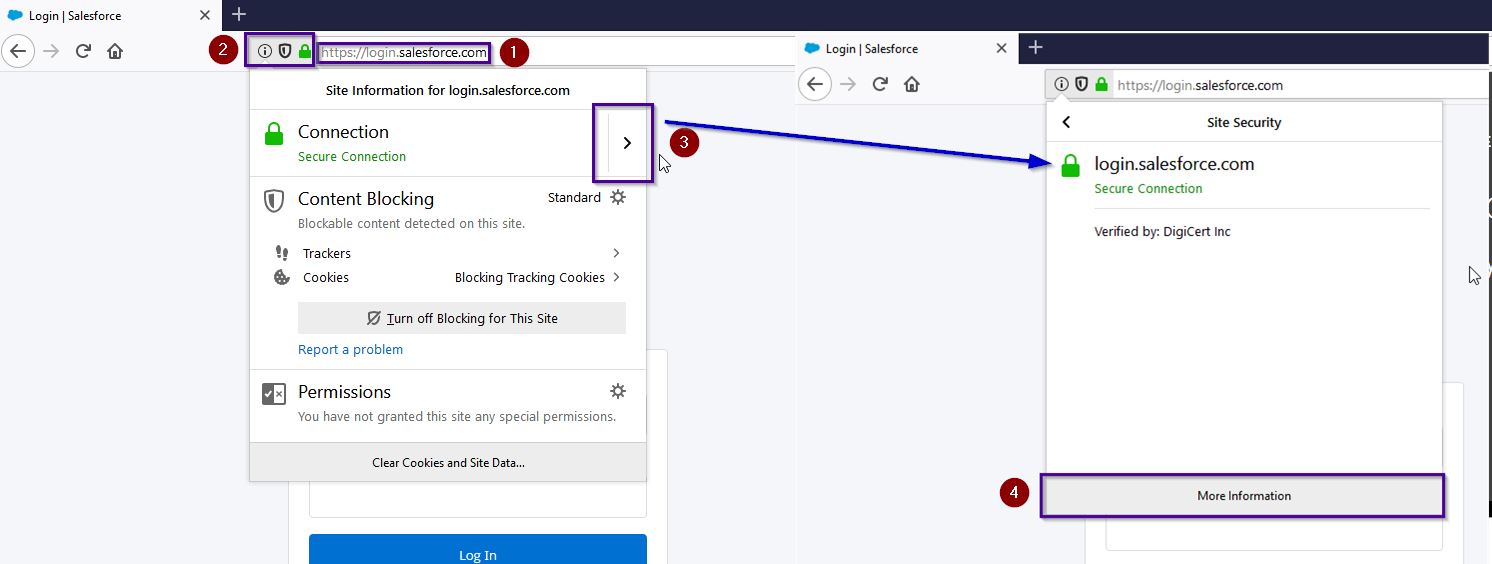
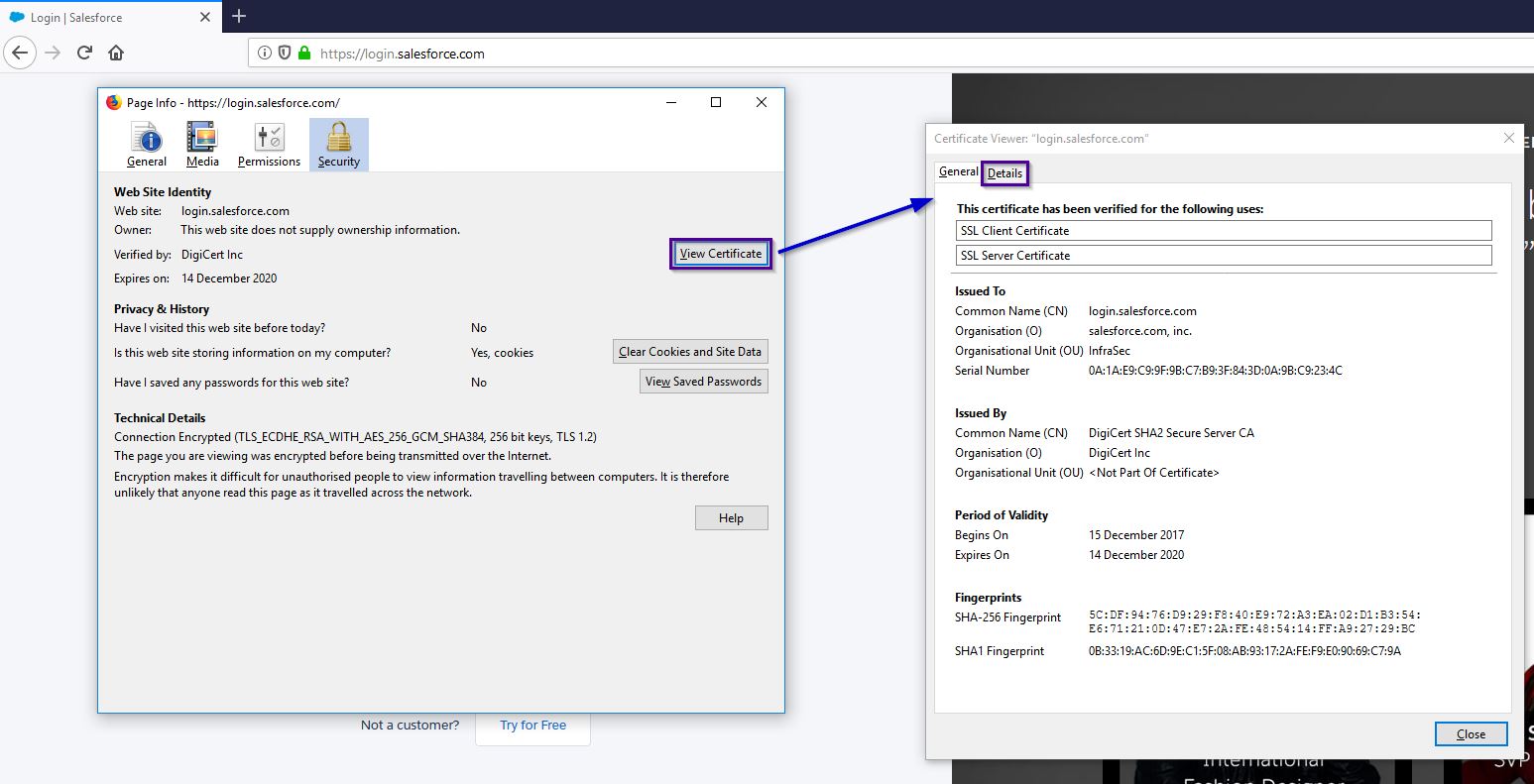
Now, select the “More Information(Step 4)” as shown in the above picture. It will open a new window, here select the option “View Certificate” and it will further open a new window now select the option “Details”
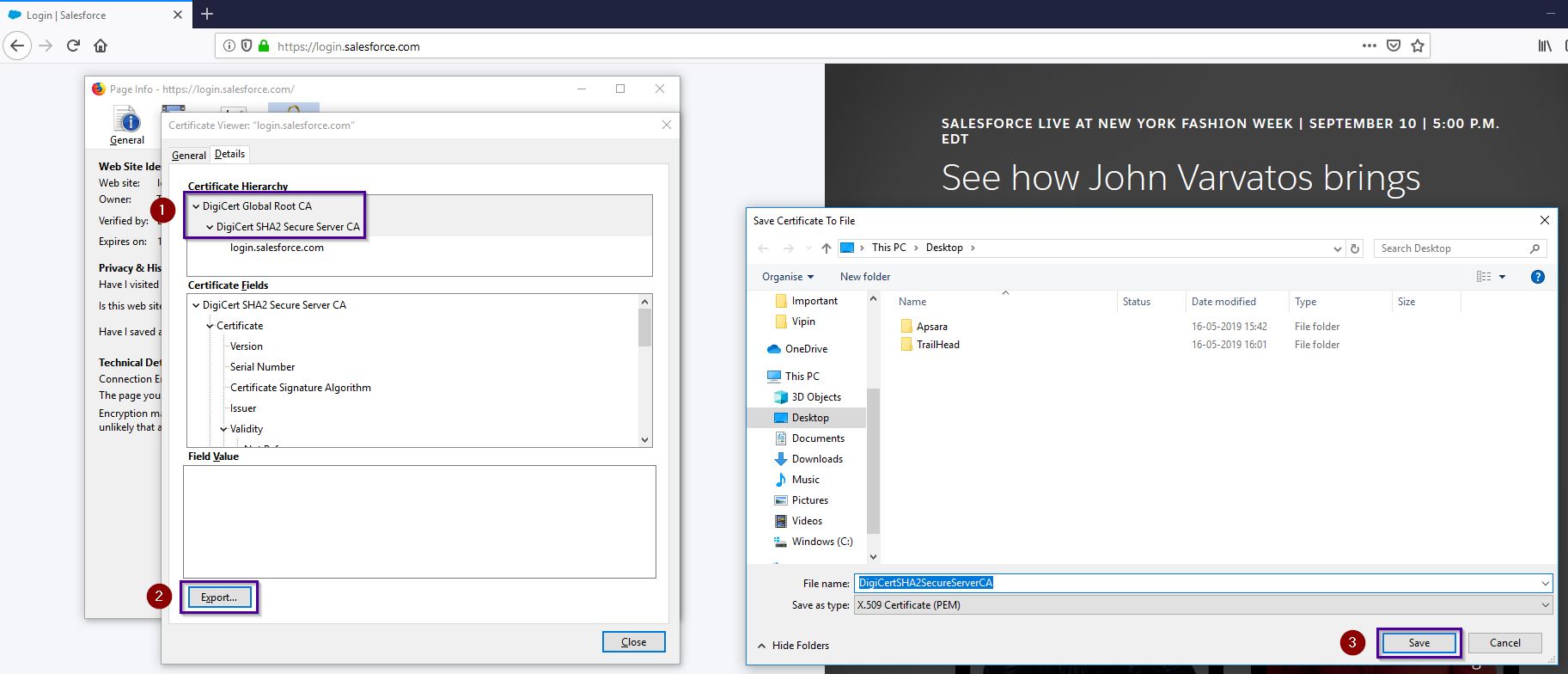
Now select the Certificate (Step 1 below) and then select the option Export (Step 2) and then Save (Step 3) to the necessary path.
secure
secure


Import certificate in SAP using transaction code STRUST #

This step is necessary if your SAP-Server is the endpoint for the SSL-communication with the internet.
If you have a proxy between your server and the internet and the proxy is the endpoint for SSL-communication you don’t need to import the certificates in your SAP server.  In this case you have to  to import the certificates in your proxy-server.
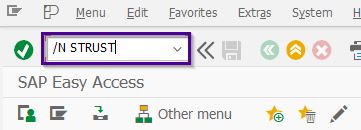
Start Transaction STRUST in SAP
Now navigate to “SSL client SSL Client (Anonymous)” (step 1) and then double click on the system (Step 2) and then on “Import Certificate (Step 3)”
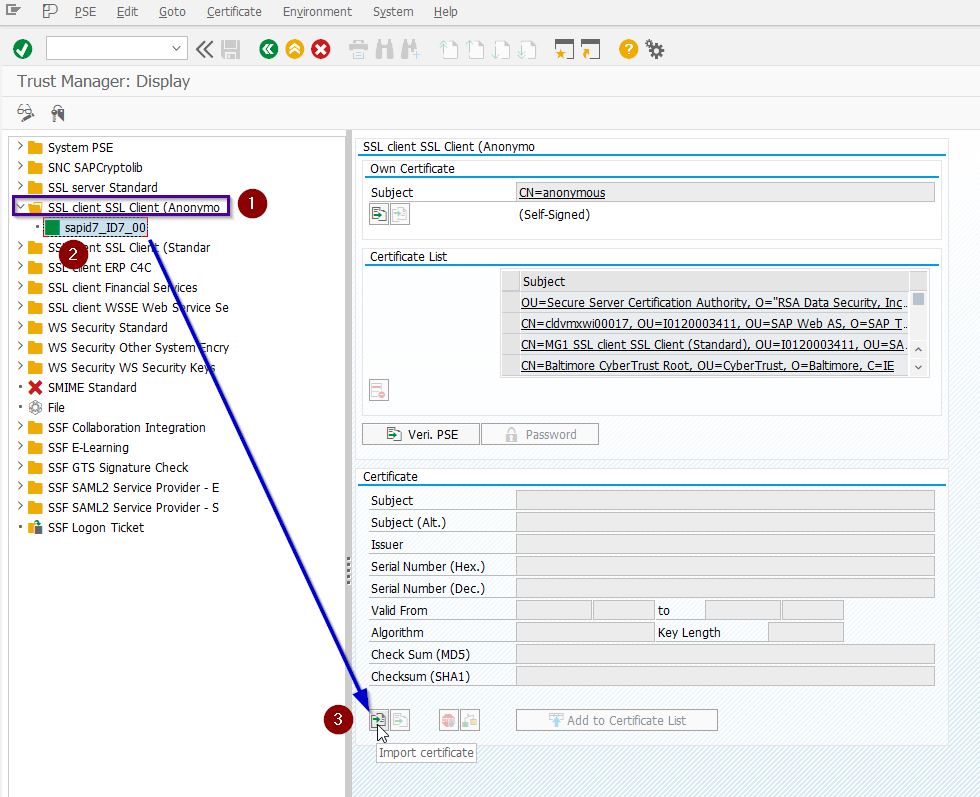
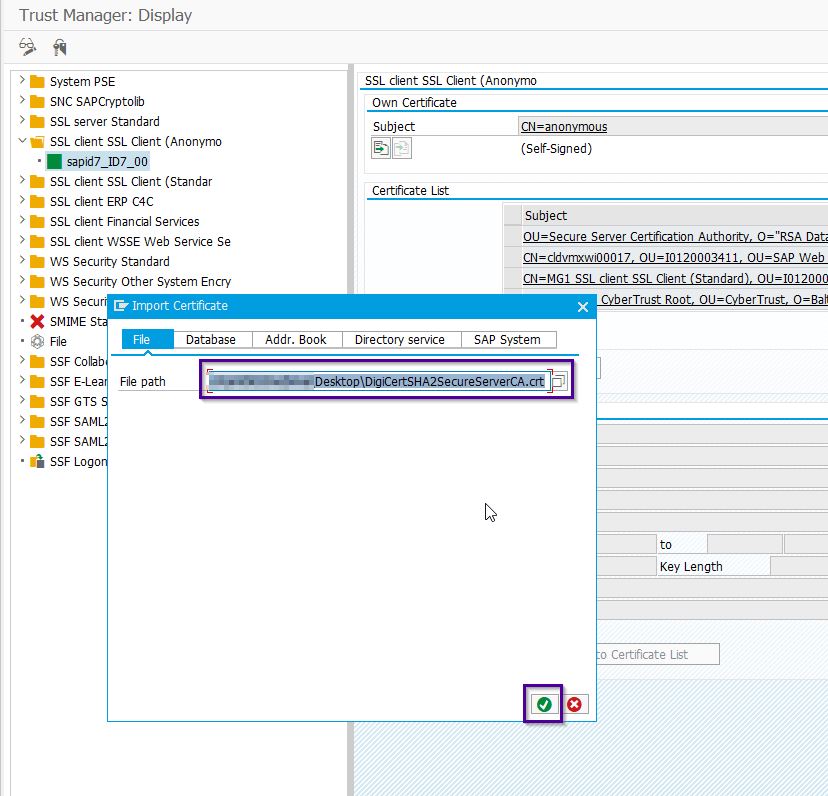
Now select the earlier downloaded Certificate and then Continue
After Import select the option “Add to Certificate List” (Step 1 below)
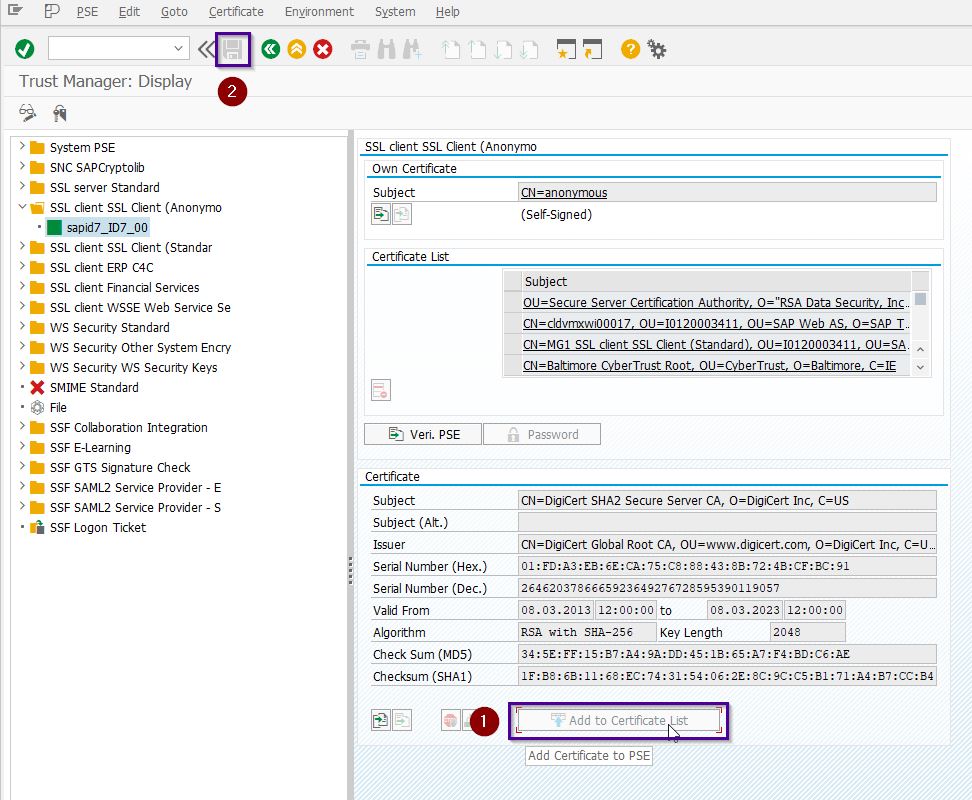
Once this is done then don’t forget to save at the end (Step 2 above).
The ICM has to be restarted (Transaction SMICM)  to make the new imported certificates accessible for the ICM (Internet Communication Manager).

Share This Article :

  • Facebook
  • X
  • LinkedIn
3. Certificate for Secured Communications3. Certificate for Secured Communications
Table of Contents
  • Download of Certificate from SFDC
  • Import certificate in SAP using transaction code STRUST

Copyright © 2026 | Apsara Consulting GmbH | All rights reserved

  • Imprint
  • Zurück zur Apsara Webseite
  • Back to Apsara website