
Skip to content
  • Blog
  • Docs
  • Documentation
  • Imprint
SKYVVA Integration App – Documentation
SKYVVA Integration App - Documentation
  • Documentation
  • Zurück zur Webseite
  • Back to website
SKYVVA Integration App – Documentation
SKYVVA Integration App - Documentation
Popular Search how tohow to useagenthowdatarestformulacustombatchstore

SAP PI/PO Adapter

Tutorials (Lightning)

Agent Old Administration Guide

SAP Release Notes

Agent Release Notes

Agent - New Administration Guide

SAP CPI Adapter

SKYVVA Administration Guide (Lightning)

  • SKYVVA Administration Guide
  • Scheduler
    • 1. Scheduler
    • 2. Using Scheduler tab to search scheduler by functional group
    • 3. Alerting Scheduler for Batch processing with threshold value setting.
    • 4. DoMaintenance Scheduler
    • 5. Interface Execution Scheduler.
    • 6. Message Reprocessing Scheduler
    • 7. Basket Processing Scheduler.
    • 8. Bulk Processing Scheduler.
    • 9. CDD and CDT Scheduler.
    • 10. Functional Category screen pop-up on multi-picklist
  • Data Loader
    • 1. Data Loader
  • Workflow
    • 1. Workflow
    • 2. Dependent Workflow processing
    • 3. Runtime Behavior
    • 4. Condition Builder in Workflow.
    • 5. Using Formula in workflow
    • 6. How to send messages to multiple receivers based on the workflow condition for the outbound interface?
    • 7. Import and Export IWorkflow
    • 8. How to build Sample Data to Test the Formula of IWorkflow Condition?
  • Different API for the Outbound message processing
    • 1. Different API for the Outbound message processing
    • 2. Invoke callout()
    • 3. Invoke callout2()
    • 3. Invoke Callout3()
    • 4. Process builder
    • 5. Apex Class
    • 6. Send data with button or Trigger
    • 7. InvokeCallout V3 based on the interface setting ?
  • What is SKYVVA?
    • 1. What is SKYVVA?
    • 2. Install SKYVVA
    • 3. How SKYVVA Apps looks like after a fresh installation
    • 4. Upgrading to a new release
    • 5. Apply and renew license key
    • 6. SKYVVA Integration Cloud ( SKYVVA App)
  • Transporting of SKYVVA object
    • 1. Transporting of SKYVVA object
    • 2. Backup/Restore every SKYVVA object
    • 3. Backup and Restore of an interface
    • 4. Backup and Restore of Metadata Provider
  • Inbound Message Processing
    • 1. Inbound Message Processing
    • 2. Different mode of the inbound message processing
    • 3. Batch Processing
    • 4. Bulk Processing
    • 5. Use Auto-Switch Mode
    • 6. Adding custom logic to the inbound message processing
    • 7. Available operation to post the message
    • 8. Publish Salesforce Platform Event
    • 9. The new Inbound processing with version v3
    • 10. New plug-in custom logic of the inbound processing
    • 11. Acknowledgement scenario for Inbound processing
  • What is an integration?
    • 1. What is an integration?
    • 2. The parameter and Fields of Integration
    • 3. Creating and clone the integration
    • 4. Alerting Setup
    • 5. Message Setup
    • 6. Automated report for failed and pending message
    • 7. Generate Metadata
  • Metadata Provider
    • How to Import File JSON to Create Message Type.
    • 1. Metadata Provider
    • 2. Repository
    • 3. Message Type and Different ways of creating message type.
    • 4. Export Metadata
    • 7. How to Import MetaData Provider to Create Message Type?
    • 6. How to Import MetaData Provider to Create Message Type?
    • 7. Message type by importing wsdl file format
    • 8. Import OpenAPI 3.x to create message type
    • 9. SAP Business One Message Type from SAP Metadata
    • 10. How to use ‘Open Editor’ button to create message type ?
    • 11. How to Import file to create message type ?
  • Outbound Message Processing
    • 1. Outbound Message Processing
    • 2. Different mode of outbound processing
    • 3. The invokeCallout API to send message to the adapter
    • 4. Sending data in real-time
    • 5. Sending data in batch mode
    • 6. Using CDC – Change Data Control
    • 7. Using Salesforce like Process Builder and Flow to trigger the data change in real-time
    • 8. Using the interface execution scheduler to send data in a batch mode.
    • 9. using invokeCallout2() or invokeCalloutV3() with mode = BATCH
    • 10. New V3 outbound processing
    • 11. New plug-in custom logic of the out bound processing
    • 12. Pass data from screens or apex class to the outbound processing.
    • 13. Acknowledgement scenario for outbound processing.
    • 14. Search by the Business External Id in outbound message (Interface)
  • Message Monitoring
    • 1. Message Monitoring
    • 2. Change the Message Name
    • 3. Reprocessing of Messages
    • 4. Jump to Interface from message Monitor
    • 5. Jump from Task to SKYVVA message
    • 6. Message summarization report
    • 7. How to check entries in the message table
    • 8. Create hypertext link to jump to Failed Message
    • 9. The new v3 message monitoring with hierarchical view
    • 10. Message, API and Event message monitoring
    • 11. Detail view of message monitoring
  • Reprocessing
    • 1. Reprocessing
    • 2. Different reprocessing variant
    • 3. Manual reprocessing
    • 4. Automatic Reprocessing per job.
    • 5. Batch reprocessing
    • 6. Bulk Reprocessing
  • What is an interface?
    • 1. What is an interface?
    • 2. Create and delete an Interface
    • 3. Ichain
    • 4. Inbound Setup
    • 5. Outbound Setup
    • 6. Runtime Configuration-General
    • 7. Runtime Configuration-Inbound
    • 8. SOQL Query for filter sObject
    • 9. Alerting Setup
    • 10. Bulk Setting
    • 11. How to post the SKYVVA message Id on the application Subject
    • 12. Query Editor
    • 13. Generate Metadata
    • 14. Inbound Posting Behavior
    • 15. Handle request and response as a transaction for synchronous call
    • 16. View chain definition in an interface as tree
    • 17. How to Edit and Delete Istructure on interface related page.
    • 18. What to do with failed message field?
    • 19. Interface Operation Type
    • 20. Bypassing message layer
    • 21. Messages Board Tab on Interface Header Page
    • 22. Init-Operations
    • 23. Processing in transactional mode
  • Housekeeping
    • 1. Housekeeping
    • 2. Deleting messages
    • 3. Deleting logs
    • 4. Deleting Attachments
    • 5. Configuration examples
  • Change Data Control (CDC)
    • 1. Change Data Control (CDC)
    • 2. Change Pointer table
    • 3. CP Query Editor
    • 4. Create Change Pointer records using Process Builder
    • 5. Send Change Pointer records manually
    • 6. CDC support to send the deleted records to the receiver
    • 7. Using Alert Scheduler to notify by email when CDC table is full
    • 8. V3 outbound processing for CDC
    • 9. How to add Create Change Pointer field on interface Level?
    • 10. How to use the Salesforce CDC change event?
  • Different API for the inbound message processing
    • 1. REST API
    • 2. SOAP API
    • 3. Rest API for integration SearchService
    • 4. SearchService API
    • 5. V3 Integrate API Service
    • 6. V3 IntegrateWithIMessage API Service
    • 7. Response mapping using Message type for API IntegrateSynchronous
    • 8. V4 Integrate API Services
    • 9. V4 integrate api with xml, json and CSV format
    • 10. Change API response
    • 11. Calling SKYVVA REST API: V3/integrate Application: Skyvva Agent
    • 12. Calling SKYVVA REST API: V4/integrate Application: Skyvva Agent
    • 13. Calling SKYVVA REST API: V3/IntegrateWithIMessage Application: Skyvva Agent
    • 14. Calling SKYVVA REST API: V4/IntegrateWithIMessage Application: Skyvva Agent
  • Adapter
    • 1. Adapter
    • 2. Email Adapter
    • 3. Org.2-Org. Adapter
    • 4. Data Loader Adapter
    • 5. Put URL parameter to the SFDC2SAPPI adapter
    • 6. SOAP Adapter
    • 7. Use message type in response interface for REST adapter
    • 8. Status of adapters
    • 9. Agent Adapters
    • 10. SFDC2SAPPI Adapter
    • 11. Rest adapter
    • 12. How to build Path,Query and Header Parameter in Rest Adapter?
    • 13. SOAP template message type
    • 14. REST template message type
    • 15. OutboundV3 processing using SAP PI/PO
    • 16. SAP Business One adapter
    • 17. Dropbox
    • 18. Google Drive adapter
    • 19. Microsoft Dynamic
  • Mapping
    • 1. Mapping
    • 2. Mapping Method
    • 3. Formula In Mapping
    • 4. Set type for imapping record for REST request mapping
    • 5. Mapping of complex and hierarchical object
    • 6. Map all fields automatically which has the same name
    • 7. Mapping of Imported WSDL request/respons/fault
    • 8. Auto Create Query based on do mapping
    • 9. Set Context is a new function for the mapping to support hierarchical data mapping.
    • 10. Where to write Formula in mapping?
    • 11. How are attributes handle in the hierarchical mapping for xml payload?
    • 12. How the Data Loader support complex xml payload and attributes
    • 13. Set Context Filter
    • 14. Behavior of Sibling and Uncle node
    • 15. How to Callout Salesforce Organization’s ID By Mapping Formula ‘GETORGID’?
    • 16. New Button Test Mapping
  • What to do after refreshing the instance?
    • 1. What to do after refreshing the instance?
  • Interface Group
    • 1. Interface Group
    • 2. Type of interface group
    • 3. Property of the interface group
    • 4. Create Interface group
    • 5. Skyvva default interface group
    • 6. Remove interface from the interface group
    • 7. Usage of interface group
    • 8. Processing of interface group
  • How to enhance the response of the inbound synchronous interface to have a custom-defined message type?
    • 1. How to enhance the response of the inbound synchronous interface to have a custom-defined message type?
  • SKYVVA Trigger
    • 1. SKYVVA Trigger
  • Platform Event
    • 1. Platform Event
    • 2. How to consume the platform event created through Skyvva Apex trigger?
    • 3. Consume platform event by process builder
  • Operation Types
    • 1. Operation Types
    • 2. Operation Query
    • 3. Operation PullQuery
    • 4. Autolaunched Flow
    • 5. DML Operation
    • 6. Publish salesforce event
    • 7. Apex Class
    • 8. Operation Query All
    • 23.8 Rest Query
    • 23.9 REST Query All
    • 9. Bulk Query
    • 10. Bulk Query All
    • 11. Upsert Auto External Id, Update Auto External Id and Delete Auto External Id
    • 12. Store Procedure
    • 13. Add a new operation ‘Create New Message’ for the inbound API
  • Batch Processing
    • 1. Batch Processing
    • 2. The Batch Control Board
    • 3. How interface group is used?
    • 4. How queue is used?
    • 5. Priority handling
    • 6. Scheduler
    • 7. Status of the Basket
    • 8. Monitoring of batch and the related message
    • 9. Alerting
    • 10. Optimisation of the batch processing
    • 11. Transition from old to new basket table
    • 12. Process Attachment basket manually
    • 13. Add "Interface" tab to the Batch Control Board
    • 14. Integrate3Batch to handle tree message
  • Bulk Processing
    • 1. Bulk Processing
    • 2. The different bulk mode (swing UI)
    • 3. Bulk processing with v3 flat and hierarchical Data
    • 4. To use Bulk instead of Batch
    • 5. Running in pure bulk and auto-switch mode
    • 6. Scheduler
    • 7. Monitoring of bulk and the related message
    • 8. The different bulk mode using old agent control board
    • 9. Bulk processing with old agent control board
  • Basket Generic Filters
    • Introduction Global Basket
    • 1. Name & Attachment Name Basket
    • 2. Information Filter Basket
    • 3. Number of Record Filter Basket
    • 4. Date Filter Basket
    • 5. Delete Basket

SKYVVA Release Notes

SAP/ERP | S4/HANA (Latest Version) Adapter

SAP-ERP (Old Version) Adapter

Mule Adapter

Migration from SAP-PO SOAP Skyvva connector to REST connector module

View Categories
  • Home
  • Documentation
  • SKYVVA Administration Guide (Lightning)
  • Transporting of SKYVVA object

3. Backup and Restore of an interface

In this unit, we will see how we can Backup and Restore an interface. Users must carry out this task when they want to update their existing interfaces or bring new ones from the source instance into the target instance. Unlike the function of Backup and Restore the whole integration, the user backup and restores only specific interfaces. Therefore, this will result in a faster run because you do not do a full backup and restore.

[su_table responsive=”yes”]

Backup Process: Restore Process
  1. Select Interfaces: Users choose the specific interfaces they want to backup from the source instance.
  2. Configuration Options: Users may have configuration options to specify backup settings, such as whether to include related configurations, mappings, or dependencies.
  3. Initiate Backup: Users initiate the backup process, and the application creates a backup file containing the selected interface configurations.
  4. Backup File: The backup file is stored securely, and users have the option to download the file or store it in a designated location.
  1. Select Target Instance: Users specify the target instance where they want to restore the interfaces.
  2. Upload Backup File: Users upload the previously created backup file containing the interface configurations.
  3. Configuration Mapping: The SKYVVA integration application provides options for mapping configurations if there are differences between the source and target instances.
  4. Initiate Restore: Users initiate the restore process, and the application updates the target instance with the configurations from the backup file.
  5. Validation: The application may perform validation checks to ensure a successful restore and provide feedback on any issues encountered.

[/su_table]

  • Open the source integration e.g. “ABC” and mark the interfaces you want to Backup.
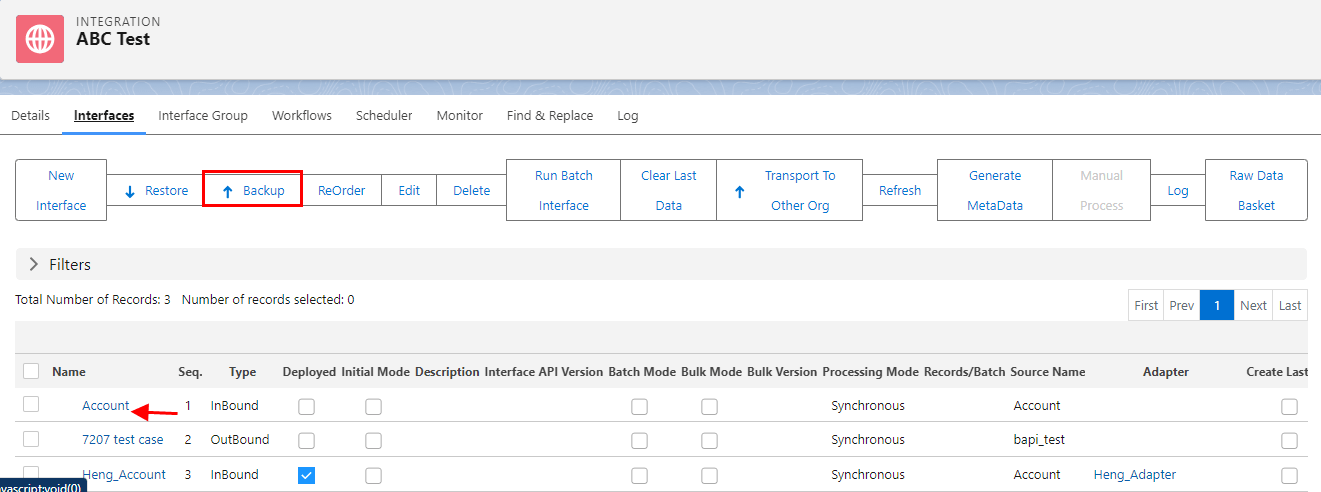
  • Click on the button “Backup Interface” to Backup the marked Interface.
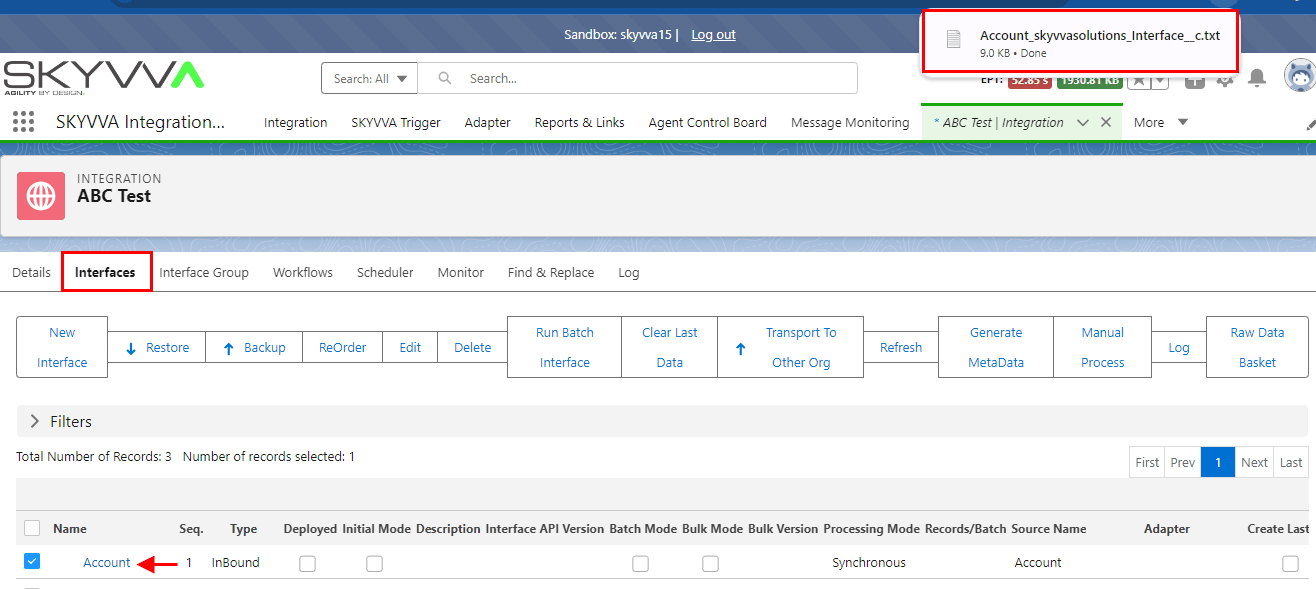
  • Download and click the show in folder.

  • Now open the target integration in the same instance or a different instance. You have to create a target integration first. The target integration will be an empty instance.
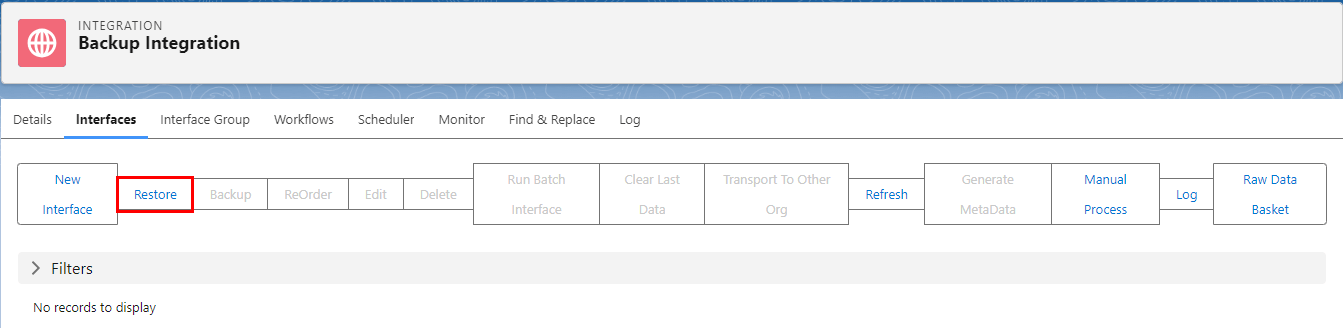
  • In this example, the integration, “Backup Integration” does not contain any interfaces. Now do the Restore by clicking on the button “Restore”.
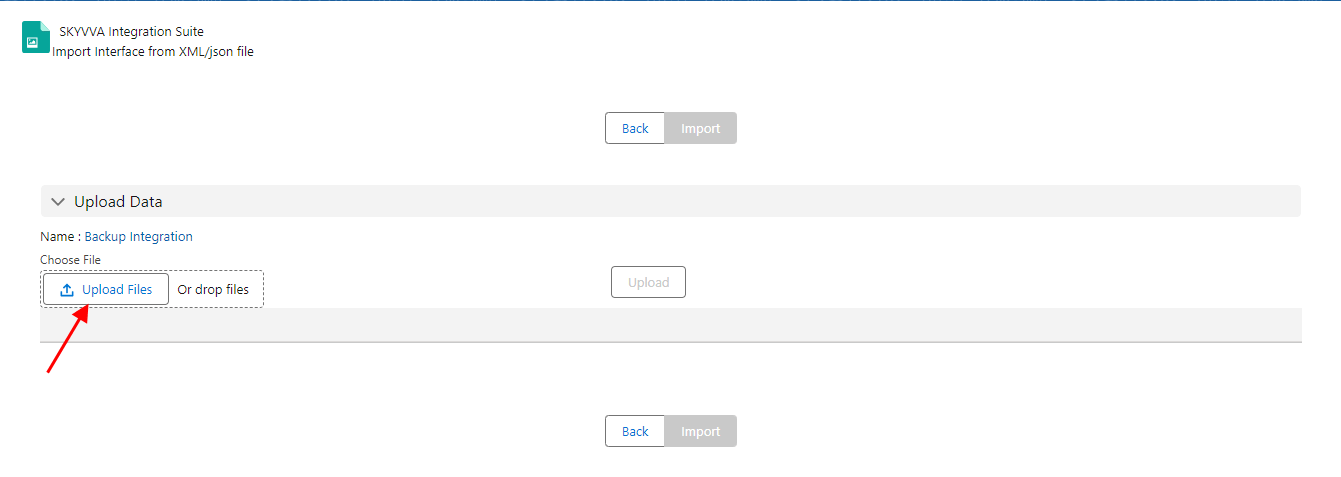
  • Click on the button “Browse” to browse your backup file.
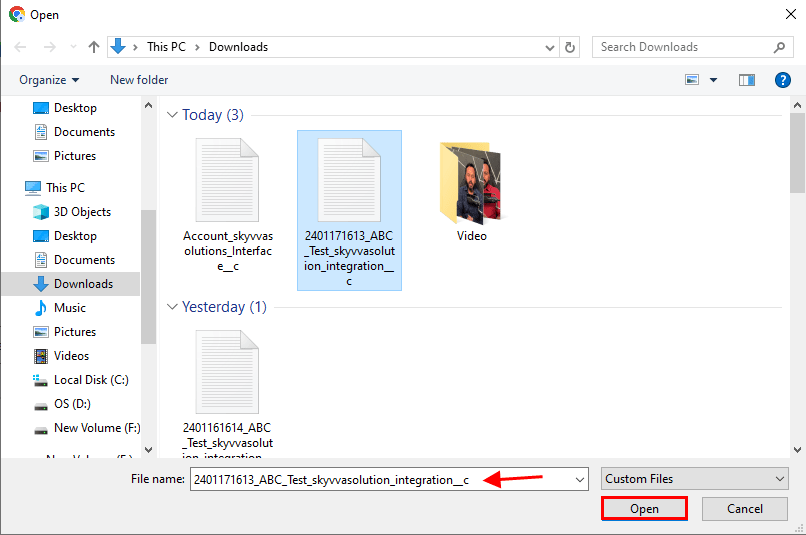
  • Choose your export file from your PC and click “Open”.
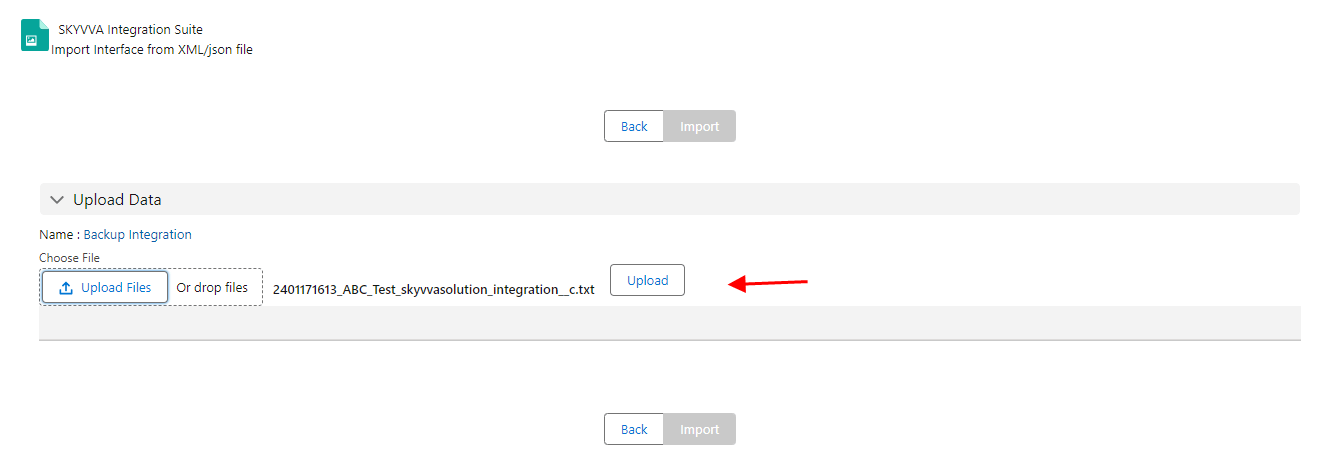
  • Now click on the button “Upload” to restore the file.
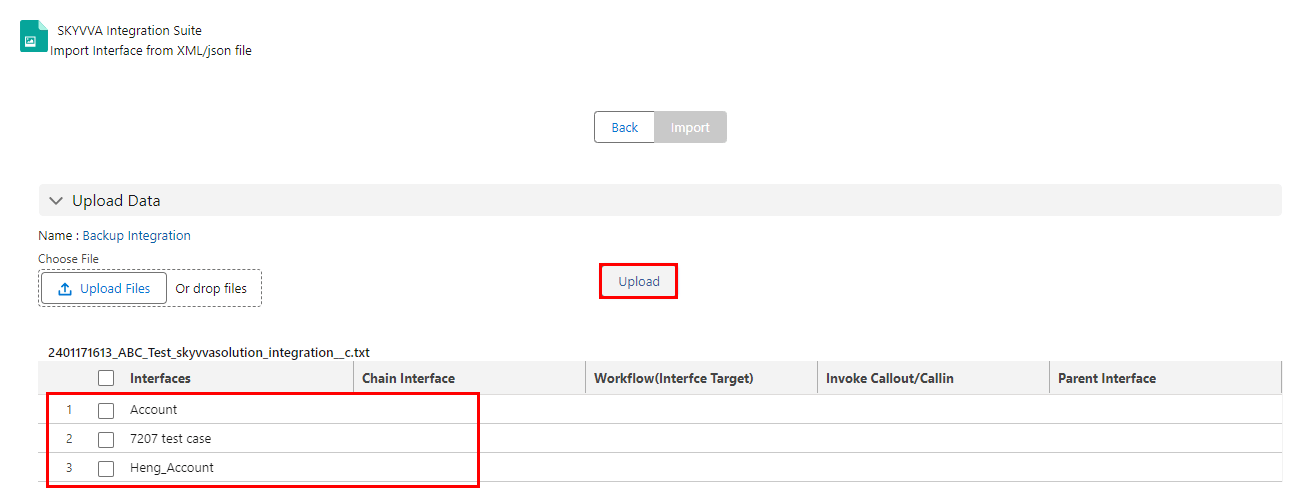
  • In this screen, you get the option to again select or deselect interfaces, which you want to import. After making your choice click on the button “Restore Interfaces” to import.
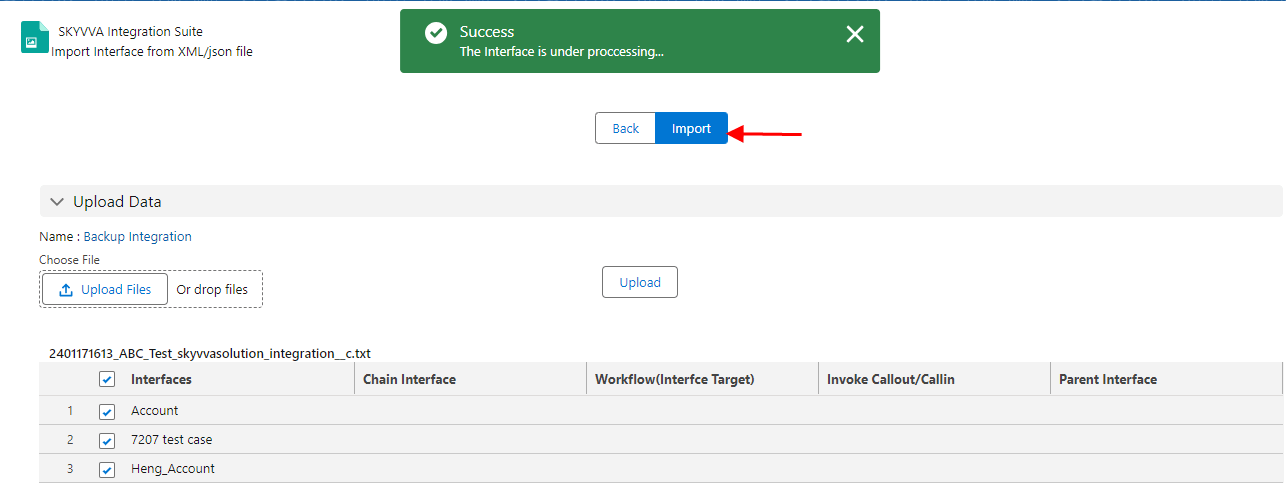
  • The import is under processing. Wait for some minutes and then check the interface tab in the target integration.
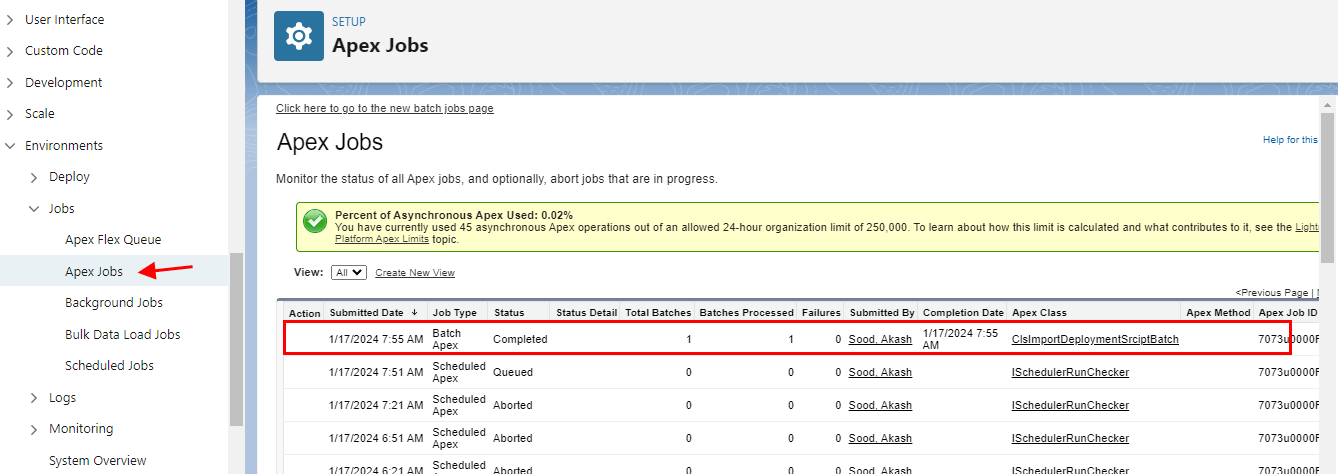
 

  • You can check the progress of the import by looking into the apex job monitor. Here you see that the restore process is completed.

The restore process is completed in the SKYVVA integration application, it indicates that the data import or restoration has been successfully executed. Users can use the Apex job monitor to review details such as job status, execution time, and any potential errors that may have occurred during the process.
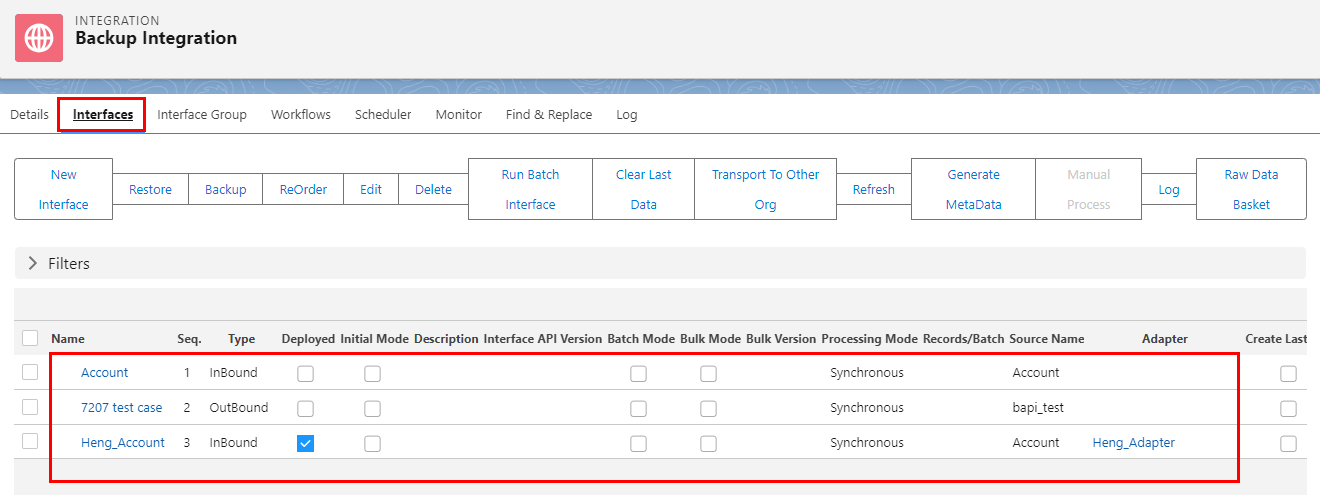
  • Here in the target integration on the tab “Interfaces”, you can see the result. In this example, all four interfaces have been restored.

Share This Article :

  • Facebook
  • X
  • LinkedIn
2. Backup/Restore every SKYVVA object4. Backup and Restore of Metadata Provider

Copyright © 2026 | Apsara Consulting GmbH | All rights reserved

  • Imprint
  • Zurück zur Apsara Webseite
  • Back to Apsara website