Skip to content
  • Blog
  • Docs
  • Documentation
  • Imprint
SKYVVA Integration App – Documentation
SKYVVA Integration App - Documentation
  • Documentation
  • Zurück zur Webseite
  • Back to website
SKYVVA Integration App – Documentation
SKYVVA Integration App - Documentation
Popular Search how tohow to useagenthowdatarestformulacustomstorebatch

SAP PI/PO Adapter

Tutorials (Lightning)

Agent Old Administration Guide

SAP Release Notes

Agent Release Notes

Agent - New Administration Guide

SAP CPI Adapter

SKYVVA Administration Guide (Lightning)

SKYVVA Release Notes

SAP/ERP | S4/HANA (Latest Version) Adapter

  • 1. Pre-Requisite
    • 1.1 Pre-Requisite
    • 1.2. Import/Deploy ABAP Transport In SAP
    • 1.3. Certificate for Secured Communications
    • 1.4. Setup Connection SAP SALESFORCE
    • 1.5 Activation of Skyvva service in SAP
    • 1.6 Create Connection Destination & SAP Adapter in Salesforce
    • 1.7 Activation of the “rfc” service service in SAP
  • 2. Create Metadata provider
    • 2.1. How to Create Metadata provider in Salesforce (Direct SAP->SF)
    • 2.2. How to Create Metadata provider in Salesforce Using AGENT
  • 3. IDOC Configuration
    • 3.1. IDOC Configuration in SAP
    • 3.2. IDOC Configuration in SALESFORCE (Direct SAP Connection)
    • 3.3. IDOC Configuration in SALESFORCE (Using AGENT)
  • 4. SAP to Salesforce (Using SAP Control Board)
    • 4.1 How to send data using IDoc?
    • 4.2 How to send data using BAPI, FM?
    • 4.3. How to use Batch mode?
    • 4.4 How to use Bulk mode?
    • 4.5 How to use Auto-Switch mode?
    • 4.6 How to use Salesforce Bulk mode?
  • 5. SAP to Salesforce (Using AGENT Control Board)
    • 5.1 How to send data using IDoc?
    • 5.2 How to send data using BAPI, FM?
    • 5.3. How to use Batch mode?
    • 5.4 How to use SFDC Bulk mode?
    • 5.5 How to use AUTO-SWITCH mode?
    • 5.6 How to use Salesforce Bulk mode?
  • 6. Salesforce to SAP(Using SAP Control Board)
    • 6.1 How to Call IDoc From Salesforce
    • 6.2 How to call S/4 HANA IDOC from Salesforce
    • 6.3 How to Call SAP ERP BAPI/FM From Salesforce
    • 6.4 How to call S/4 HANA BAPI from Salesforce
    • 6.5 How to call SAP REST API using Skyvva REST Adapter?
    • 6.6 How to call SAP SOAP API using Skyvva SOAP Adapter?
  • 7. Salesforce to SAP(Using Agent Control Board)
    • 7.1 How to Call SAP ERP IDoc From Salesforce
    • 7.2 HOW TO CALL SAP S/4 HANA IDOC FROM SALESFORCE
    • 7.3 How to Call SAP ERP BAPI/FM From Salesforce
    • 7.4 HOW TO CALL SAP S/4 HANA BAPI FROM SALESFORCE
    • 7.5 HOW TO CALL SAP REST API USING SKYVVA REST ADAPTER?
    • 7.6 How to call SAP SOAP API using Skyvva SOAP Adapter?
  • How to develop inbound interface using FM/RFC/Report with the multi-itab adapter synchronously?
    • 13. How to develop inbound interface using FM/RFC/Report with the multi-itab adapter synchronously?
    • a. Direct SAP to SALESFORCE
    • b. Using AGENT
  • DEBMAS IDOC Sending from SAP -> SF
    • 14. DEBMAS IDOC Sending from SAP -> SF
    • a. Direct SAP to SALESFORCE
    • b. Using Agent
  • ORDRSP IDOC Sending from SAP -> SF
    • 15. ORDRSP IDOC Sending from SAP -> SF
    • a. Direct SAP to SALESFORCE
    • b. Using Agent
  • DESADV IDOC Sending from SAP -> SF
    • 16. DESADV IDOC Sending from SAP -> SF
    • a. Direct SAP to SALESFORCE
    • b. Using Agent
  • INVOIC IDOC Sending from SAP -> SF
    • 17. INVOIC IDOC Sending from SAP -> SF
    • a. Direct SAP to SALESFORCE
    • b. Using Agent
  • Generic Use of Multit-Tab
    • 8. Generic Use of Multit-Tab
  • Inbound Interface using Bulk Mode
    • 2. HOW TO DEVELOP INBOUND INTERFACE USING Bulk Mode (SAP Control Board)
    • 1. HOW TO DEVELOP INBOUND INTERFACE USING BULK MODE (AGENT CONTROL BOARD)
  • Inbound Interface using Batch Mode
    • 1. HOW TO DEVELOP INBOUND INTERFACE USING Batch MODE (AGENT CONTROL BOARD)
    • 2. HOW TO DEVELOP INBOUND INTERFACE USING BATCH MODE (SAP CONTROL BOARD)

SAP-ERP (Old Version) Adapter

Mule Adapter

Migration from SAP-PO SOAP Skyvva connector to REST connector module

View Categories
  • Home
  • Documentation
  • SAP/ERP | S4/HANA (Latest Version) Adapter
  • 6. Salesforce to SAP(Using SAP Control Board)

6.4 How to call S/4 HANA BAPI from Salesforce

Posting BAPI to SAP S/4 HANA From Salesforce using Skyvva SAP S/4 HANA Adapter

Importing BAPI/RFC’s from Import SAP metadata
To Import SAP metadata first we need to create SAP Connection in skyvva as shown below
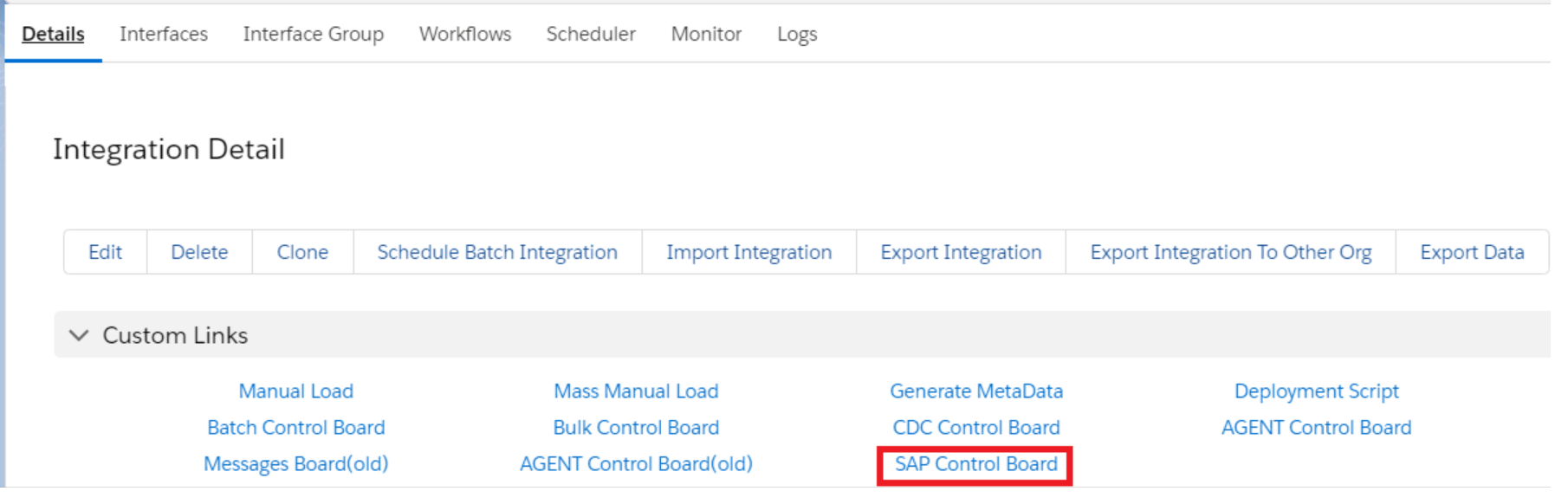
Go to Integration details tab and then select SAP Control Board
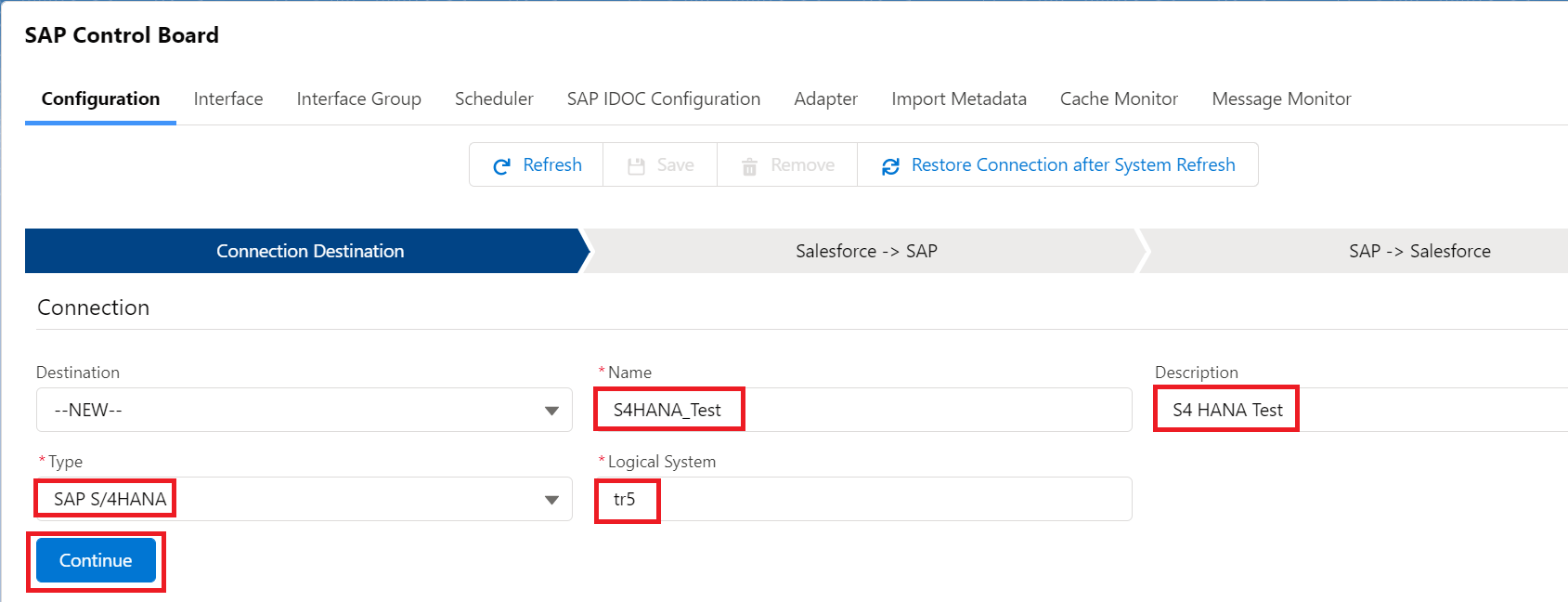
Provide the details as shown for the SAP system

In the Configuration tab. Provide the details
Here we need to provide the sap configuration details as below
Type: SAP S/4 HANA
Deployment: Embedded
Logical System: tr5
Host Url: http://xxxx.com
Port: 16xxx
Username: xxxx
Password: ******
SAPID: System Id
Client: 820
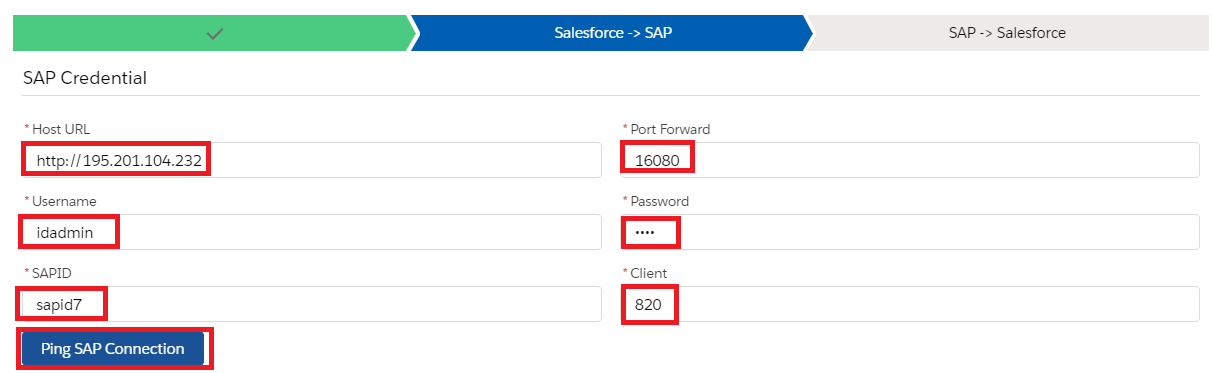
Once we provide the details we need to ping the SAP Connection. Then we can see the pop-up like its successfully connected to SAP Backend.
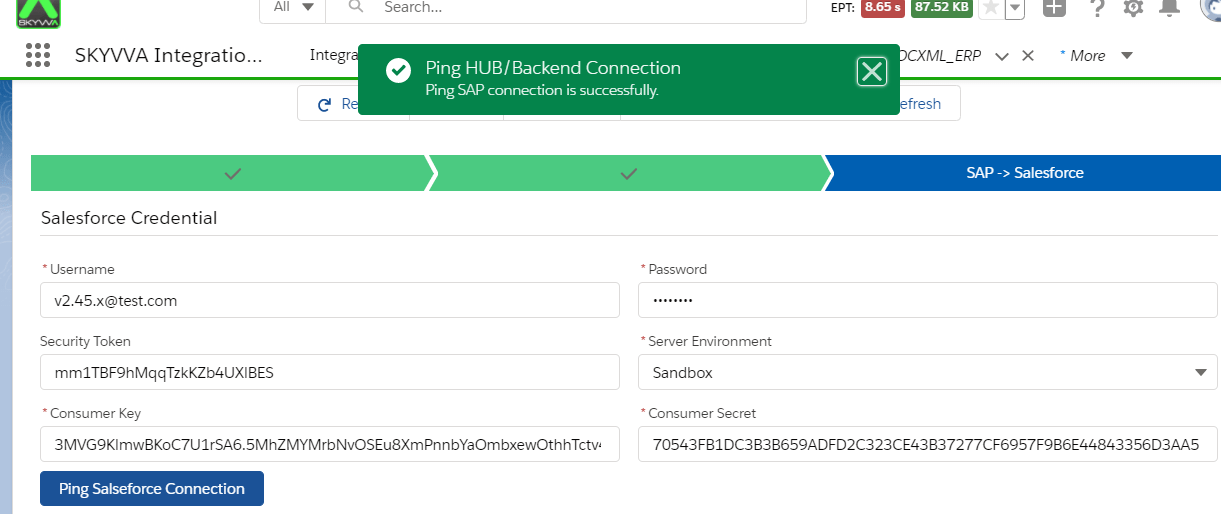
Now we have to provide the salesforce details as shown below.
Consumer Key and Consumer Secret we can get from the connected App.
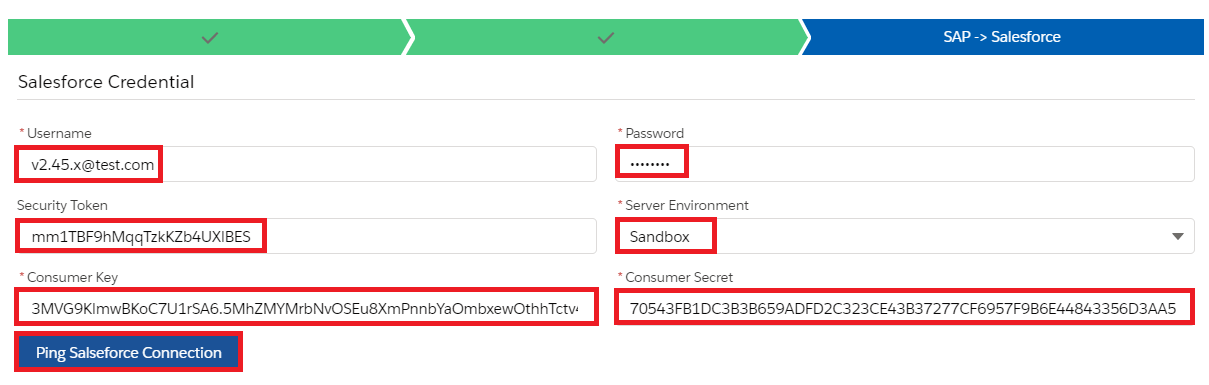
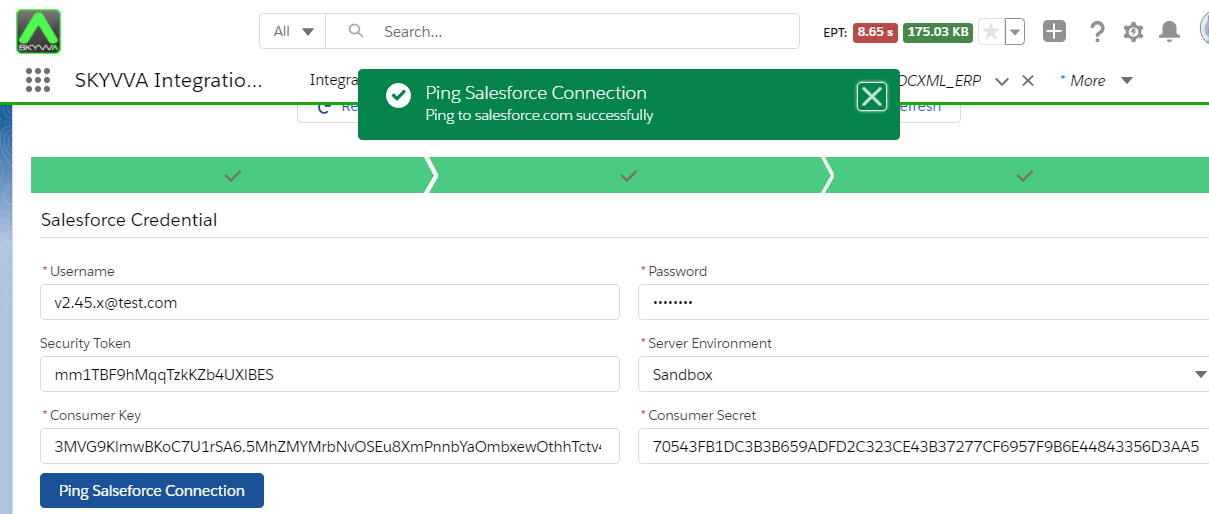
Click on Ping Connection of Salesforce to check if its connected successfully.
We got the Consumer Key and Consumer Secret from App manager.
With this connection. we can import the IDOC/RFC’s from SAP.
Create Metadata Provider
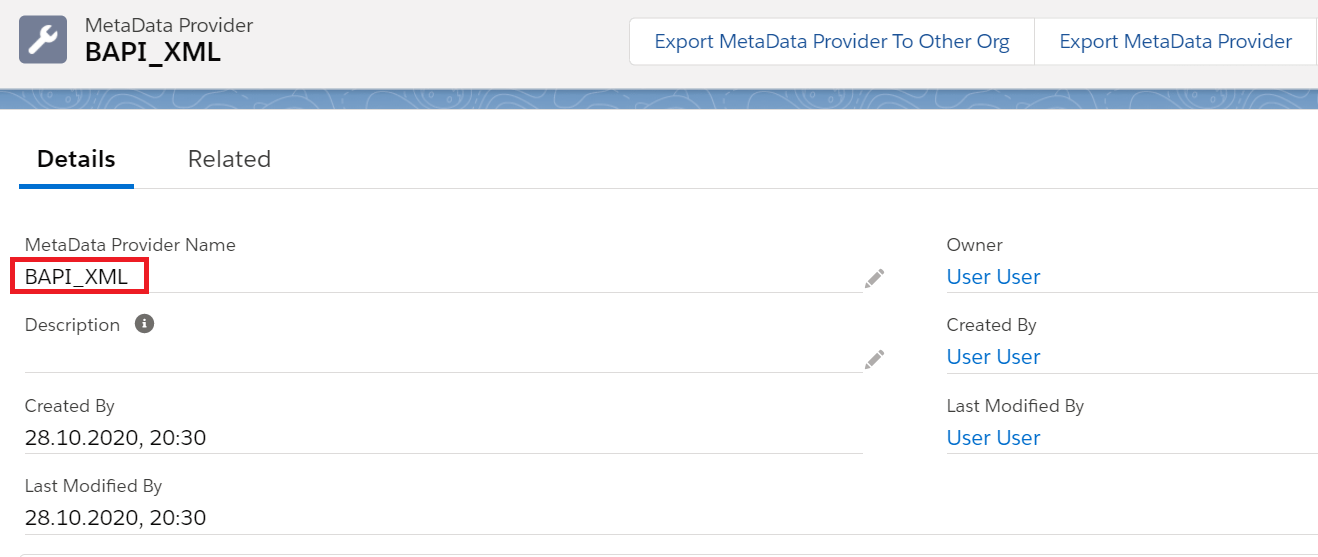
Create Repository
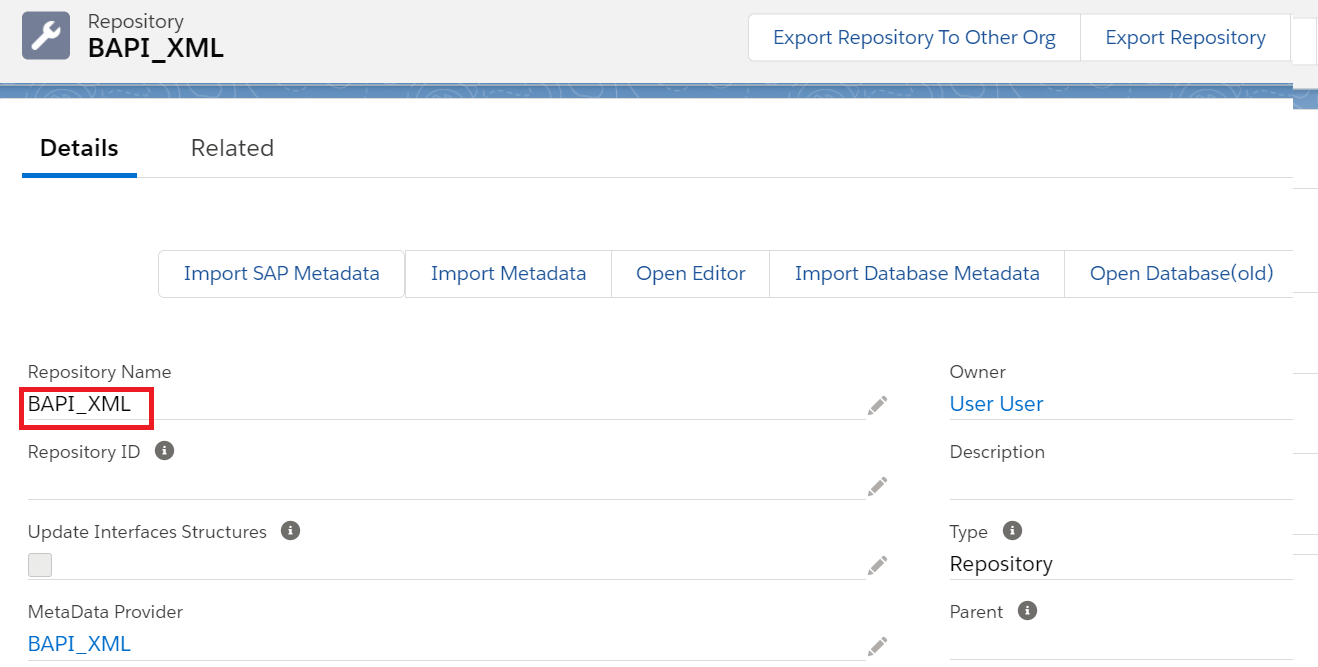
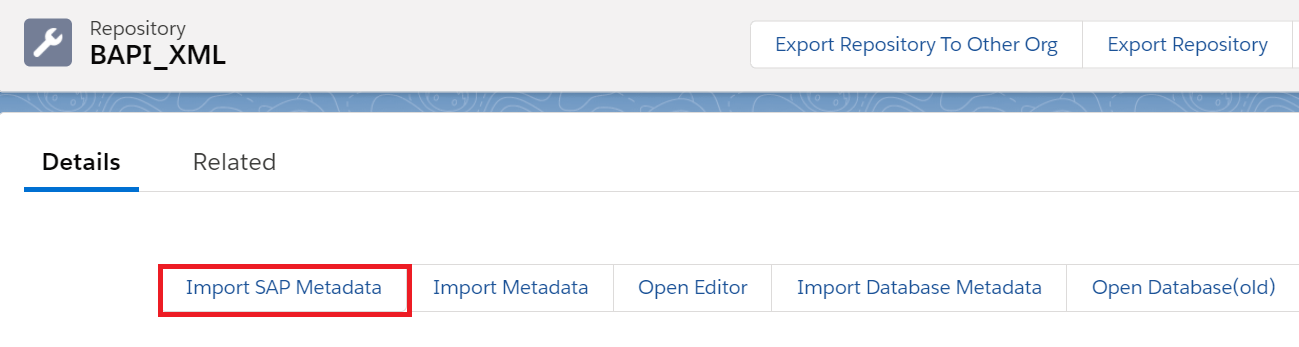
From the Repository Click on Import SAP Metadata Tab

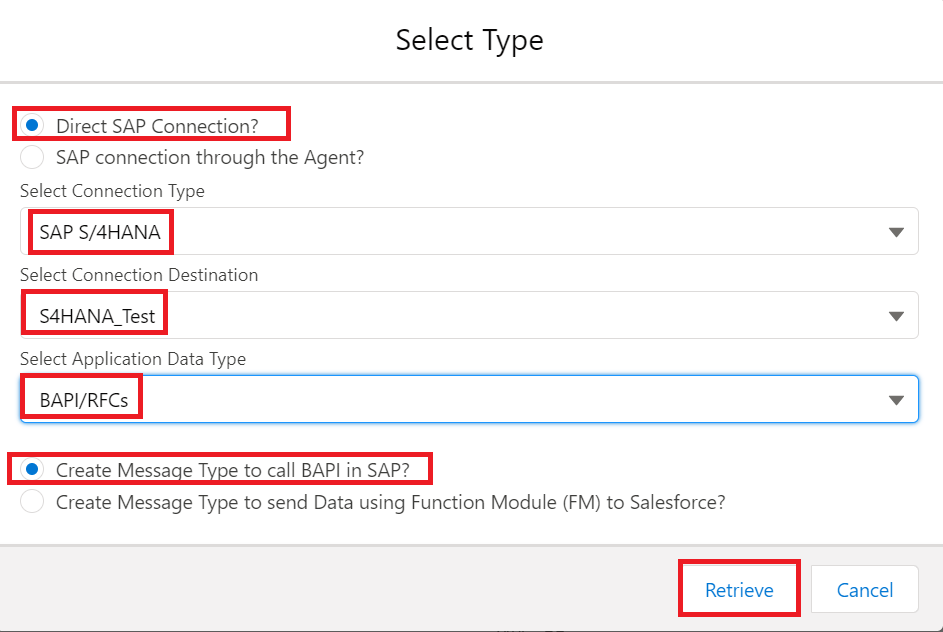
Here we need to give the details of connection type, Connection Destination which we created earlier in the SAP Control Board and Select the Application Data type BAPI/RFC’s and then click on Retrive.
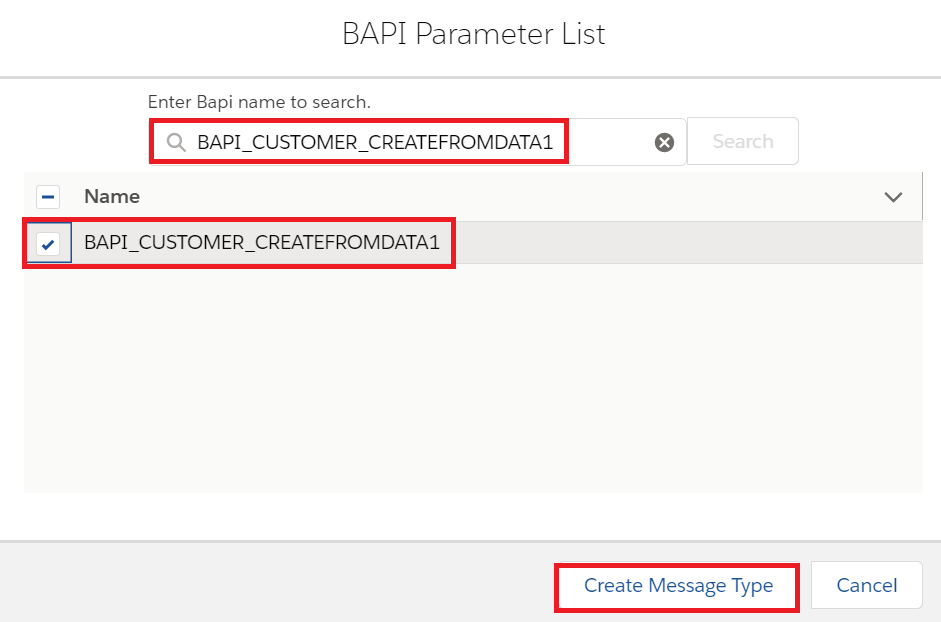
Select the BAPI name to create message type
Below is the message type template for BAPI
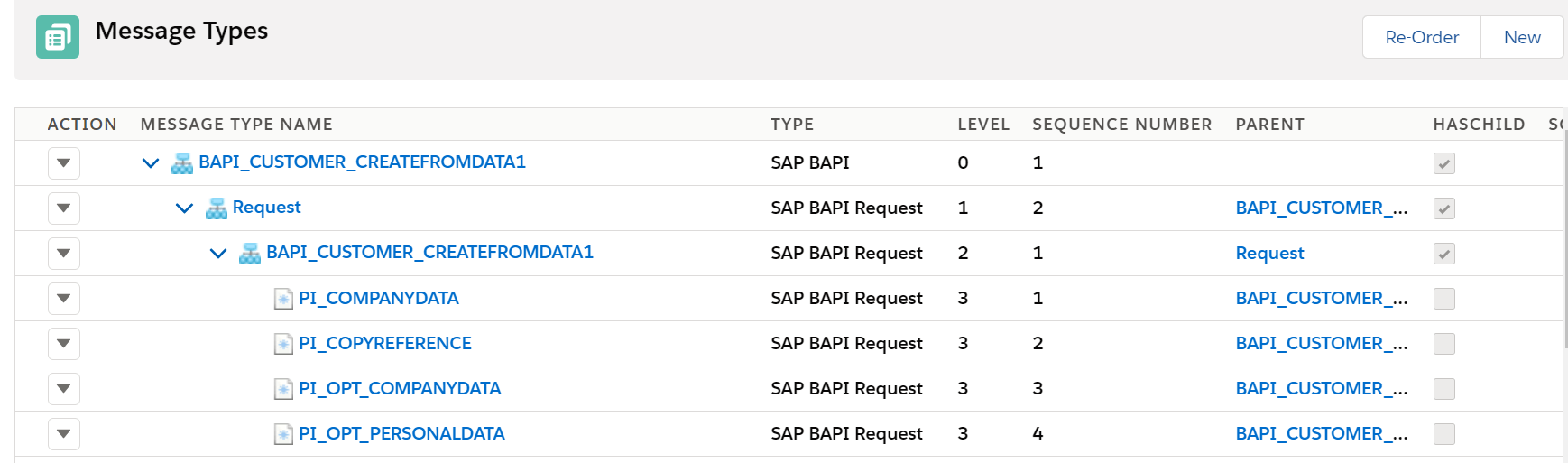
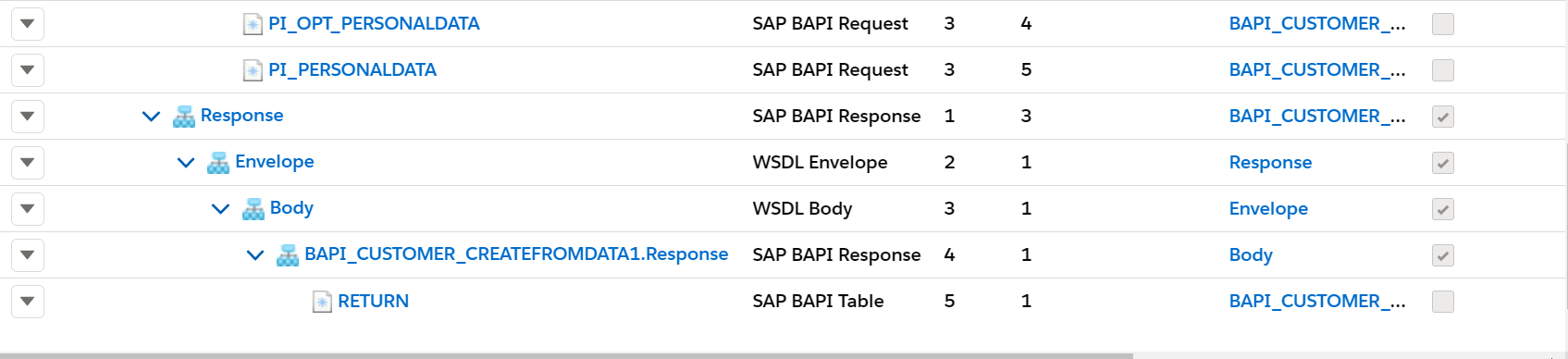
This message type we use in the outbound interface and inbound interface

Creating the SAP S/4 HANA Adapter in Skyvva
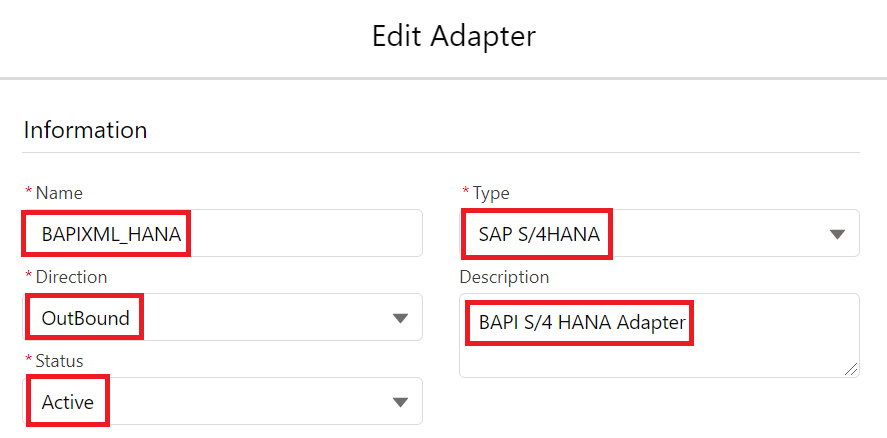
We need to provide the following details to create the Skyvva SAP ERP adapter
Name – Name of the adapter
Type – SAP S/4 HANA
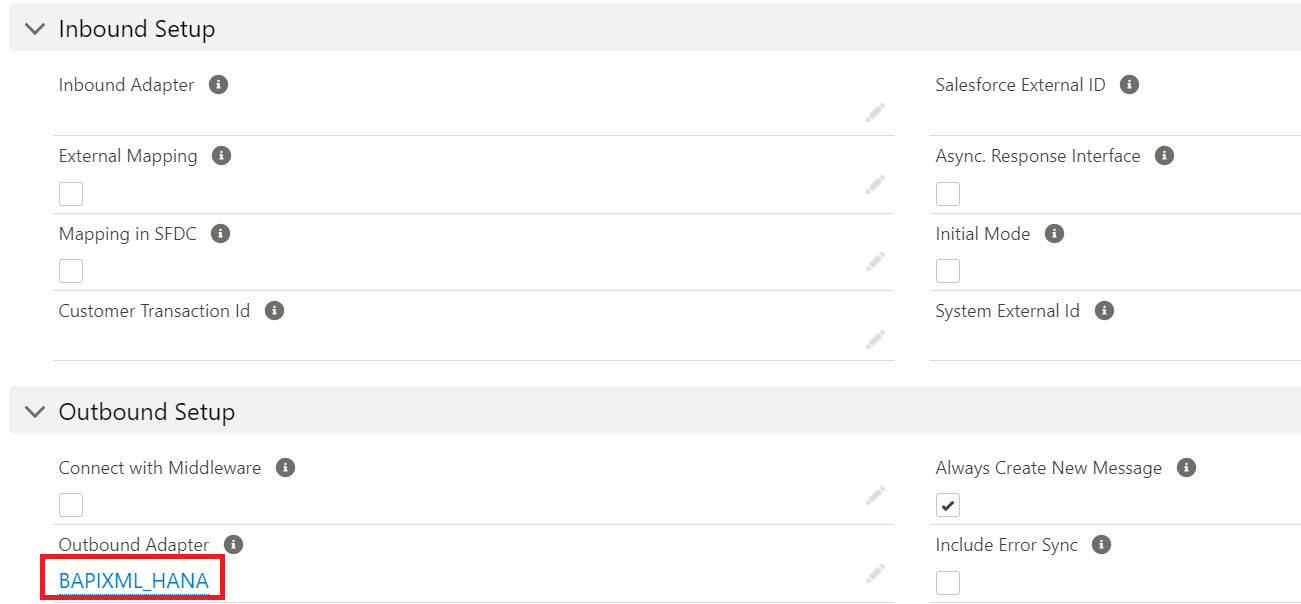
Description – BAPI S/4 HANA Adapter
Direction – Outbound
Status – Active
Deployment – On Premise
objectFormat – BAPI
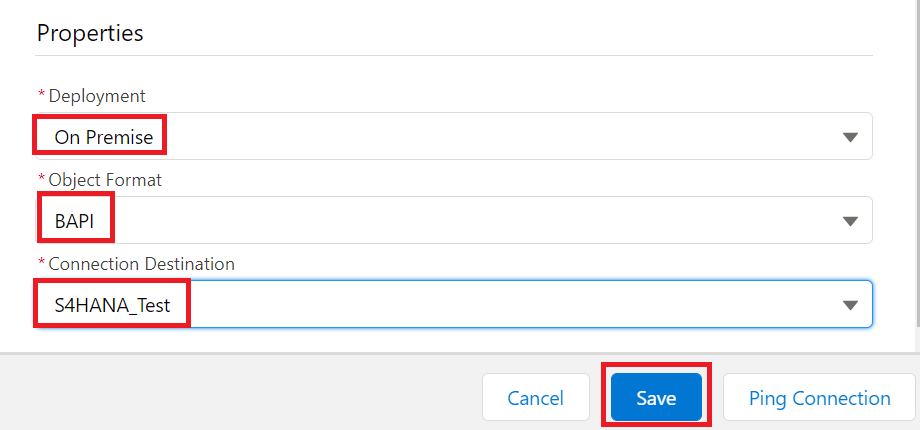
Connection Destination – It means the SAP Connection which we created earlier for the backend connection – S4HANA_Test
Now click on save button to create the adapter.
Creating an Outbound Request interface:
Provide the Name, sObject type, Description, Processing mode, Status, Metadata provider, Repository, Message type, outbound adapter and the SQL statement as shown in the screenshots below
In the message type we have to select the root message type then it will automatically point to Request in the request interface and point to Response in the response interface.
In our example BAPI_CUSTOMER_CREATEFROMDATA1 is the root message type as shown below.

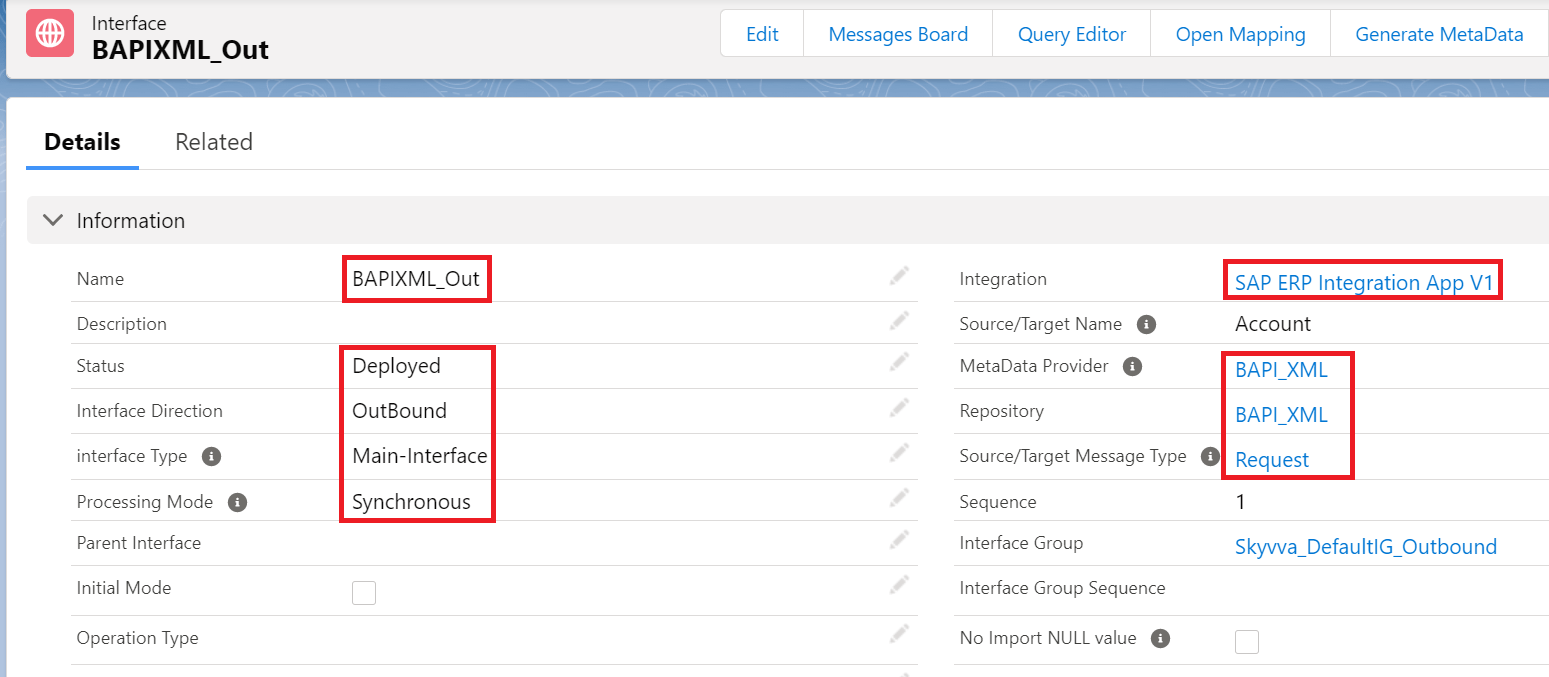
Add the response interface in the request interface.

For outbound interface we have to do mapping in Skyvva as shown.
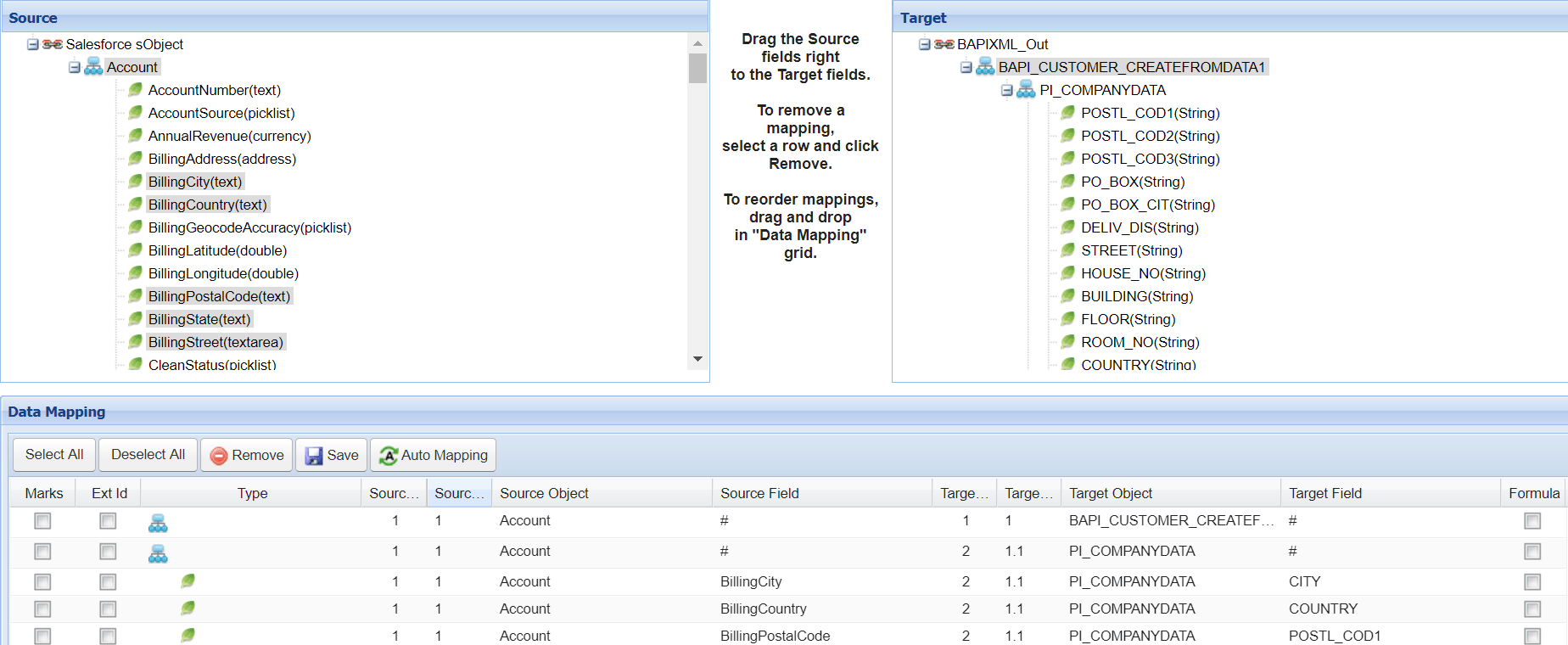
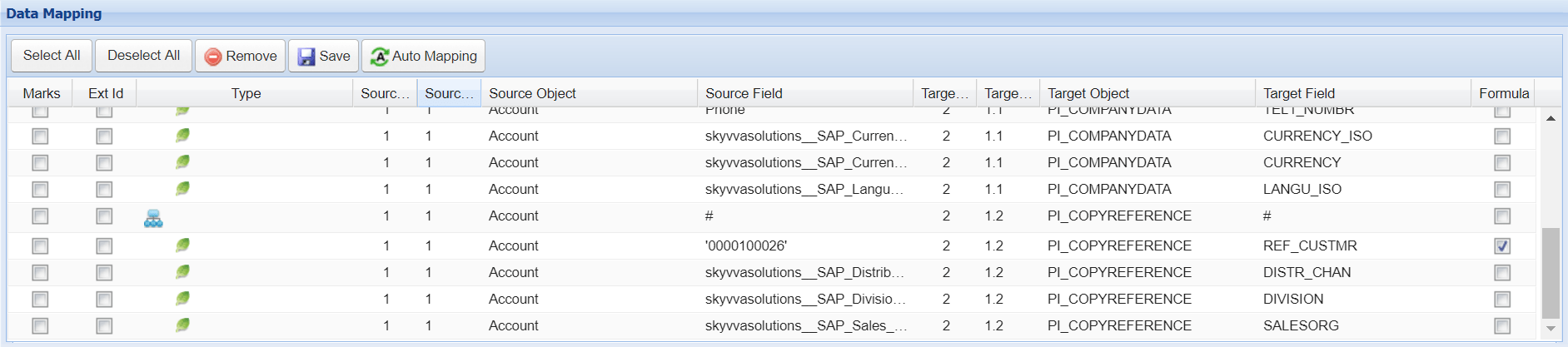
Save the interface once provide all the necessary details.
Creating an Inbound Response Interface:
Provide the Name, sObject type, Description, Processing mode, Status, Operation Type, Metadata provider, Repository, Message type as shown in the screenshots below
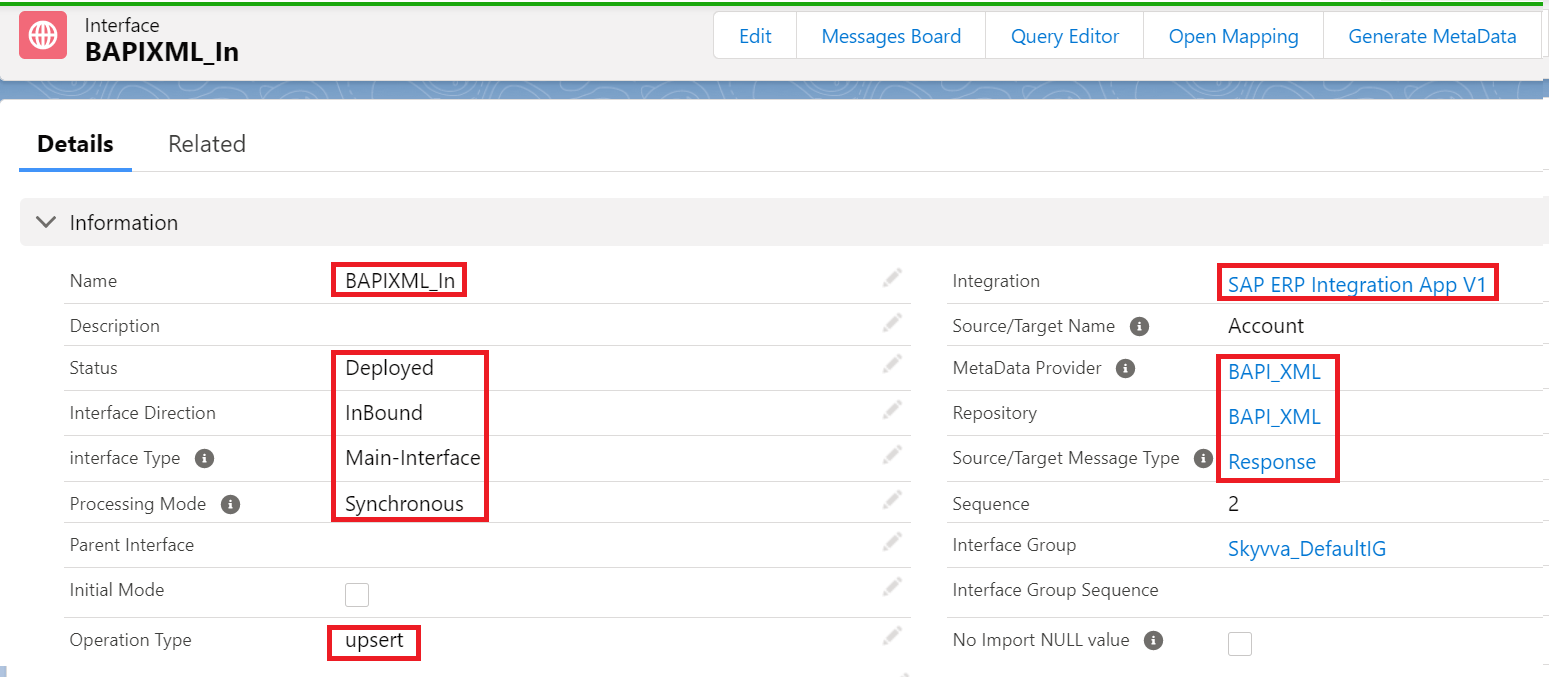
Do the inbound mapping as shown below.
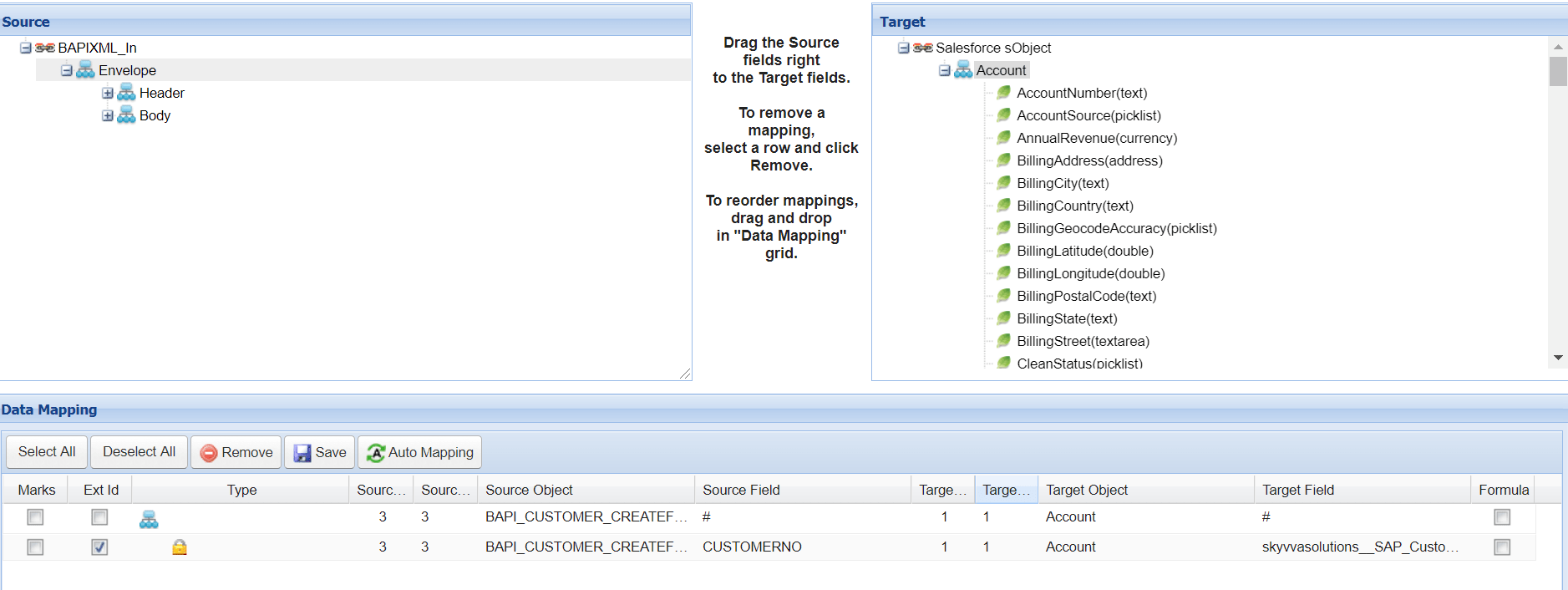
Now do the callout using below apex code:
skyvvasolutions.CallOutControl c=new skyvvasolutions.CallOutControl();
c.returnXml=true;
c.returnListRecord=true;
c.isCreateMessage=true;
c.actionDoIntegrate=true;
String[] ids=new String[]{‘0013E00001DKgY9QAL’};
skyvvasolutions.Iservices.invokeCalloutV3(‘BAPIXML_ERP’,’BAPIXML_Out’,ids,’SYNC’, c);

Now we can see the message in the message monitor:

Click on Related to as shown in below screenshot

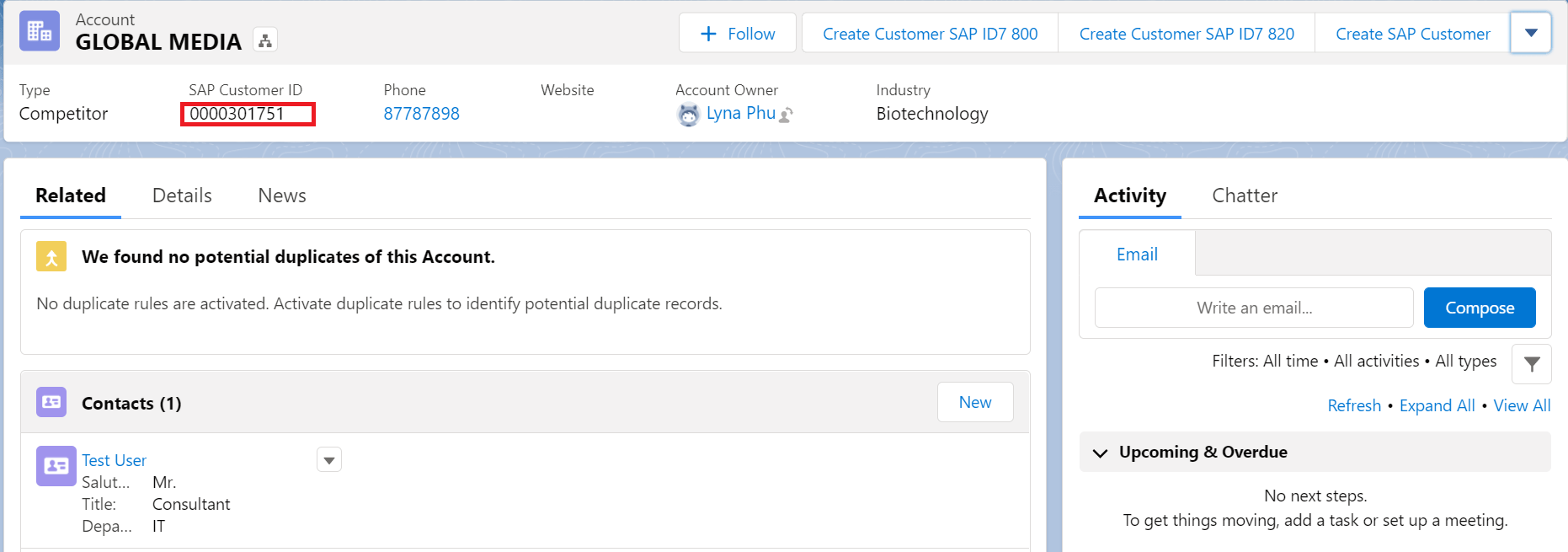
Then we can see the updated customer ID in SKYVVA as shown below
Share This Article :

  • Facebook
  • X
  • LinkedIn
6.3 How to Call SAP ERP BAPI/FM From Salesforce6.5 How to call SAP REST API using Skyvva REST Adapter?

Copyright © 2026 | Apsara Consulting GmbH | All rights reserved

  • Imprint
  • Zurück zur Apsara Webseite
  • Back to Apsara website