
Introduction #
This chapter explains the Scheduler on Agent Control Board. The scheduler is a program that starts and handles a job automatically. The user can get all inbound and outbound schedulers related to integration. The scheduler is a type of scheduled job which runs regularly based on time settings. You can set up the scheduler as your wish.
SKYVVA schedules the class for execution at the specified time sometimes. Actual execution can be delayed based on service availability.
The following are the values for the expression:
| Name | Values |
|---|---|
| Seconds | 0–59 |
| Minutes | 0–59 |
| Hours | 0–23 |
| Day of month frequency | 1–31 |
| Month Frequency | 1–12 or the following:
|
| Day of week | 1–7 or the following:
|
| Connection Destination | Web services eg. AWS, Google Cloud, Alibaba, etc. |
-
- Daily: The schedule will activate the operation every day, or every few days. When this option is selected, the following become available to configure:
- Every [#] Day(s): Enter a number of days in between operation runs.
- Daily: The schedule will activate the operation every day, or every few days. When this option is selected, the following become available to configure:
-
- Weekly: The schedule will activate the operation during a specified set of days of the week. When this option is selected, the following become available to configure:
- Every [#] Week(s): Enter a number of weeks in between operation runs.
- [Sun, Mon, Tue, Wed, Thu, Fri, Sat]: Check the boxes next to the day(s) of the week on which you want the operation to run.
- Weekly: The schedule will activate the operation during a specified set of days of the week. When this option is selected, the following become available to configure:
-
-
Monthly: The schedule will activate the operation on a monthly basis. When this option is selected, choose one of two options that become available to configure:
- Day [#] of Every [#] Month(s): Enter the day of the month and number of the month in between operation runs.
- The [1st, 2nd, 3rd, 4th, or Last] [Day of Week] of Every [#] Month: Use the dropdowns to select which day of the month and enter the number of months in between operation runs.
-
- Daily Frequency: Select one of two options for the times at which the schedule should kick off the operation on the days that it runs:
- Occurs once at [hh: mm] [AM/PM]: The schedule will activate the operation only once at the specified time. Use the dropdowns to select the hour(s), minute(s), and time of day at which you want the operation to run.
- Occurs every [#] [Minute(s)/Hour(s)] Starting at [hh:mm] [AM/PM] and Ending at [hh:mm] [AM/PM]: The schedule will repeatedly reactivate the operation for the specified period of time throughout the day. Enter a number to correspond with the dropdown selection of minute(s) or hour(s) at which you want the operation to run, along with dropdown selections of any times throughout the day that you want to limit the operation to run within.
NOTE: Time zones are discussed below in Operation Time Zones.
- Duration: Configure the dates of duration for the schedule.
- Starting at: By default, the current date will be selected. If you want to specify a different start date, click the calendar icon to open a calendar date picker and select the desired date.
- Ending at: By default, the operation(s) on which the schedule is assigned will run indefinitely per the schedule. If you want to specify an end date, click the calendar icon to open a calendar date picker to select the desired date.
SKYVVA Schedulers is a type of scheduled job which runs regularly bases on-time settings. There are three categories of Schedulers.
- Schedule per integration: a global scheduler process all interfaces on integration, it will skip either the Interface group or interface that is running its scheduler. Scheduler name AgentProcessPerIntegration
- Schedule per-interface group: process all interfaces in the group, if the scheduler has been started then all the schedules of the interface in this group will stop automatically. Scheduler name AgentProcessPerInterfaceGroup
- Schedule per interface: it will process a specific interface. It cannot be started if its interface group scheduler has already started. Scheduler name AgentProcessPerInterface
- Other: This is a scheduler per integration only. It is responsible to upload the Agent logs generated for that integration into the iLog2c table AgentLogEntryTransfer
To find a scheduler on Agent Control Board #
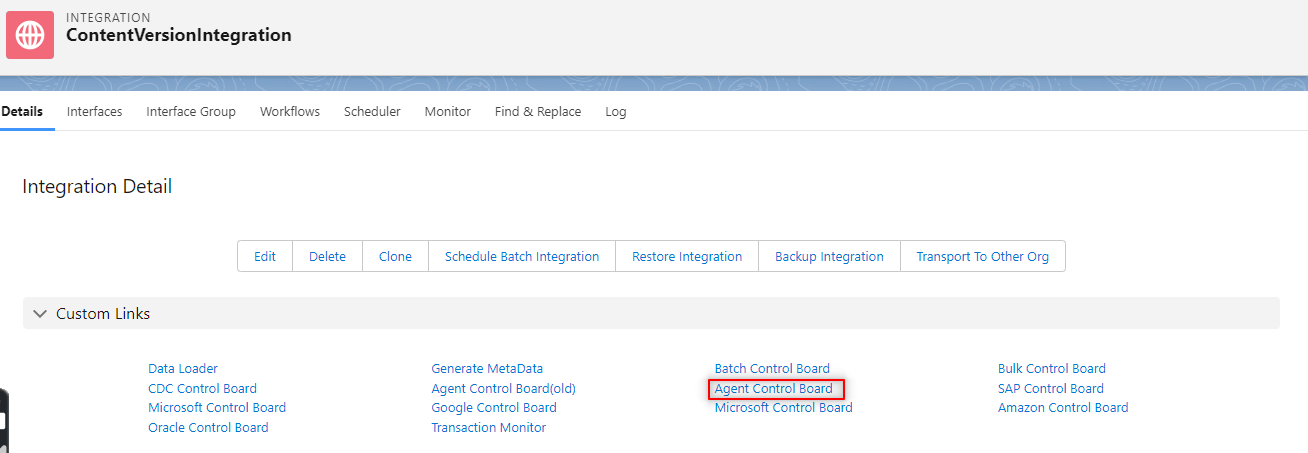
- Login to salesforce and enter the Integration page detail
- Click on Agent Control Board
- You can find this page on the Agent Control Board page with the tab name “Scheduler”
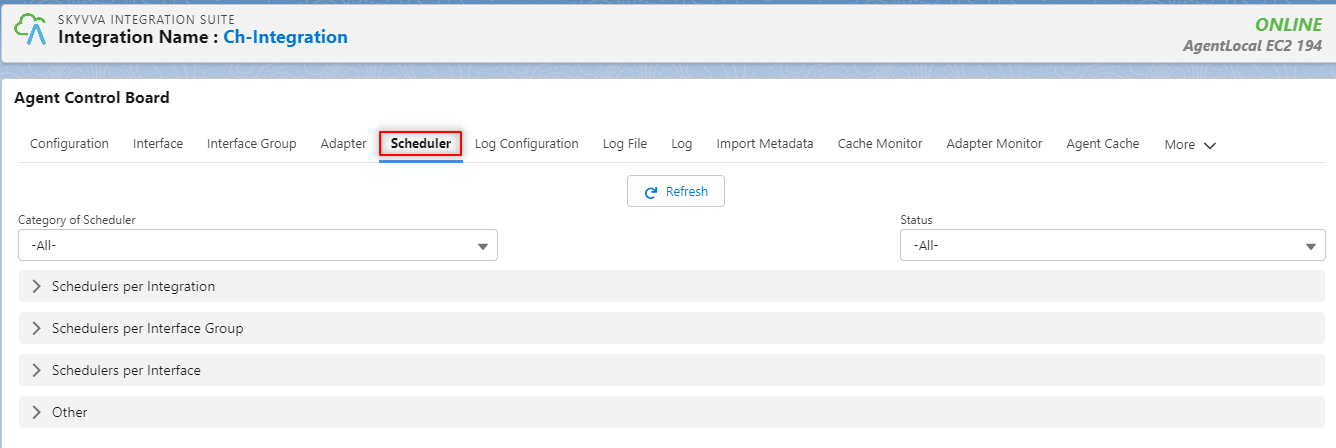
Scheduler Page contains the following fields:
- Category of Scheduler: There are many categories of schedulers
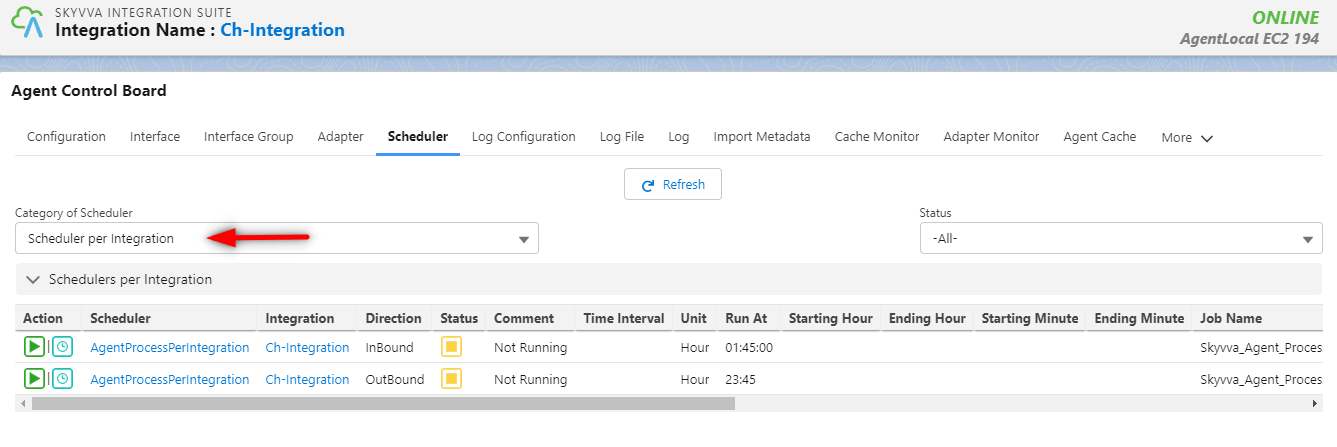
- Schedulers per Integration: you can choose which scheduler per Integration you want to start. There are two types of schedulers:
-
-
- Inbound
- Outbound
-
-
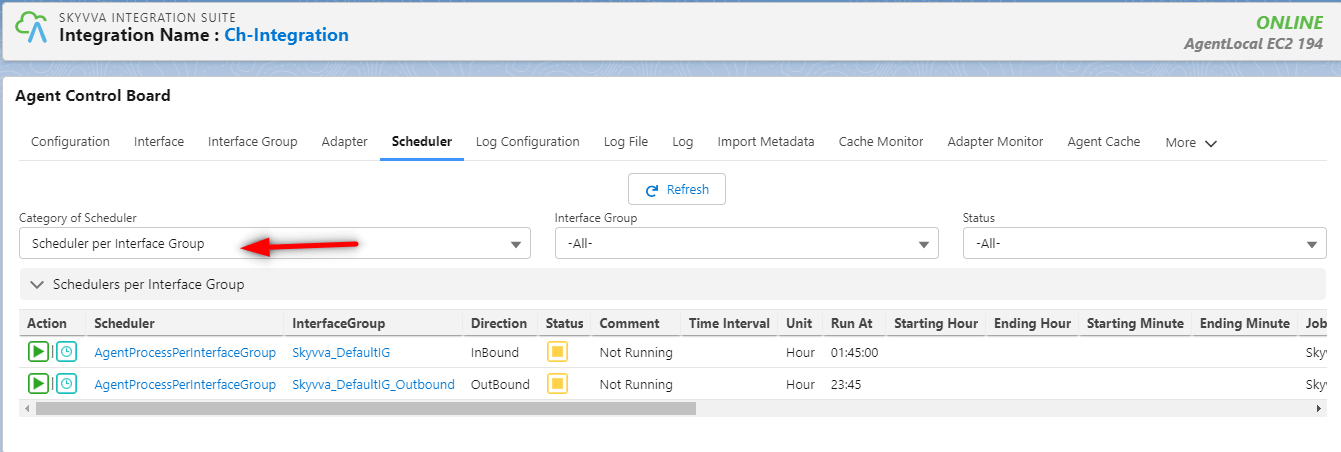
- Scheduler per Interface Group: you can choose which scheduler per Interface group you want to start. There are two types of schedulers per- interface group:
-
- Skyvva_DefaultIG_Outbound: you can get all outbound related to integration.
- Skyvva_DefaultIG: you can get all inbound related to integration.
-
- Scheduler per Interface: you can choose which scheduler per interface you want to start.
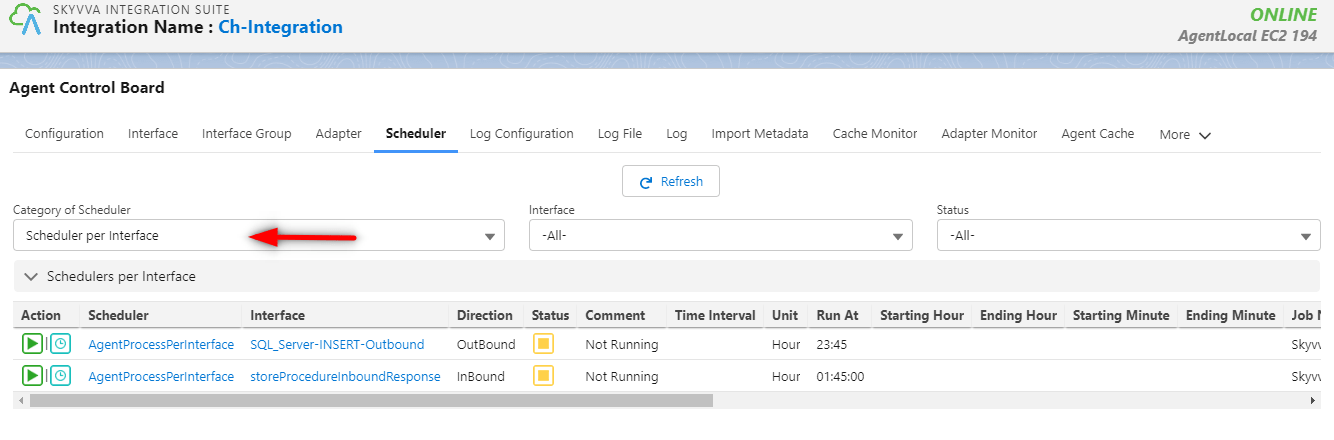
- Interface: You can search for schedules with a single interface or with all interfaces.
- Interface Group: You can search for schedules with all interface group
- Status: There are 2 types of status that you can search. These statuses are
- Running
- Stopped
Prerequisite #
Before setup the scheduler, there are some properties you must know:
- Daily Frequency:
- Run at: If you choose this it means you want the scheduler to run once a day but at a specific time.
- Run every: The scheduler will run every hour or minute depending on you who set them up. If you want to run every X hour then you have to choose Hours. However, you have to choose the starting time along with the ending time you want it to end.
- Days of Frequency:
- Days of Week: The default is all day is selected. It means the scheduler will run every day. But if you want to skip one day or more you can deselect that day.
- Days of Month: The function of this one is similar to the above. If you want the scheduler to skip then deselect the month you don’t want to run.
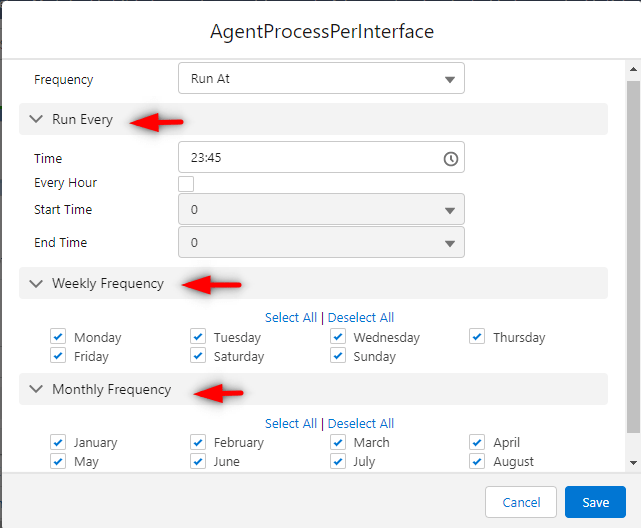
– How to use Scheduler on Agent Control Board
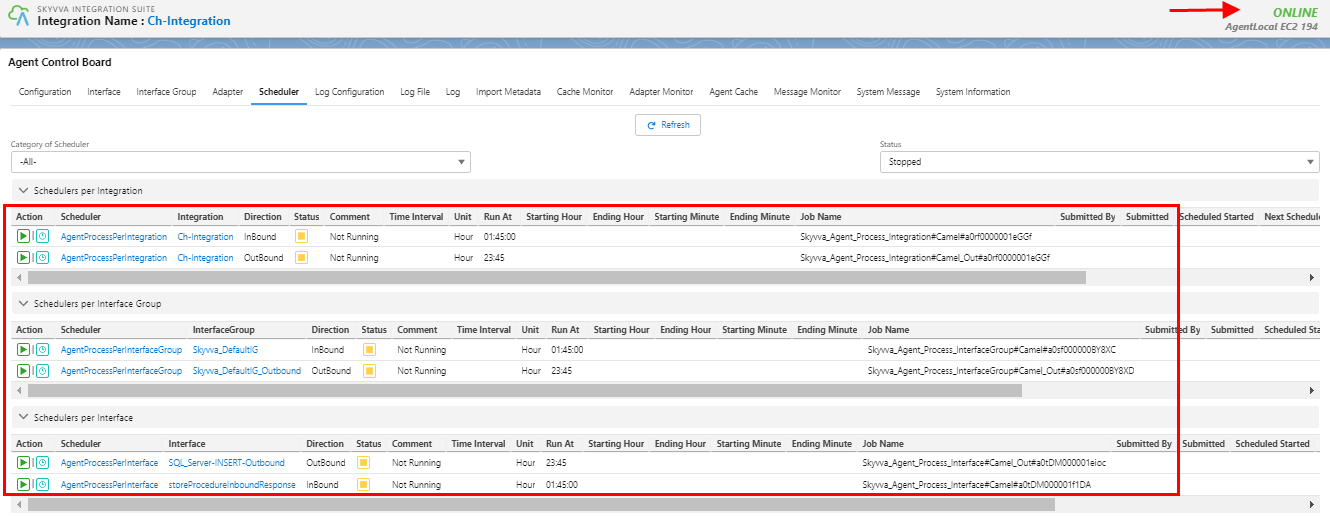
- Before you run the schedule you make sure your interface group, Adapter, Integration, Interface, mapping, Ichain, Workflow, is cache retrieved correctly.
- The agent will be generated scheduler after you click the scheduler tab
- Set the time to Run At (You can choose the one Frequency you want to set for running)
- Navigate to the message monitor tab to check the result
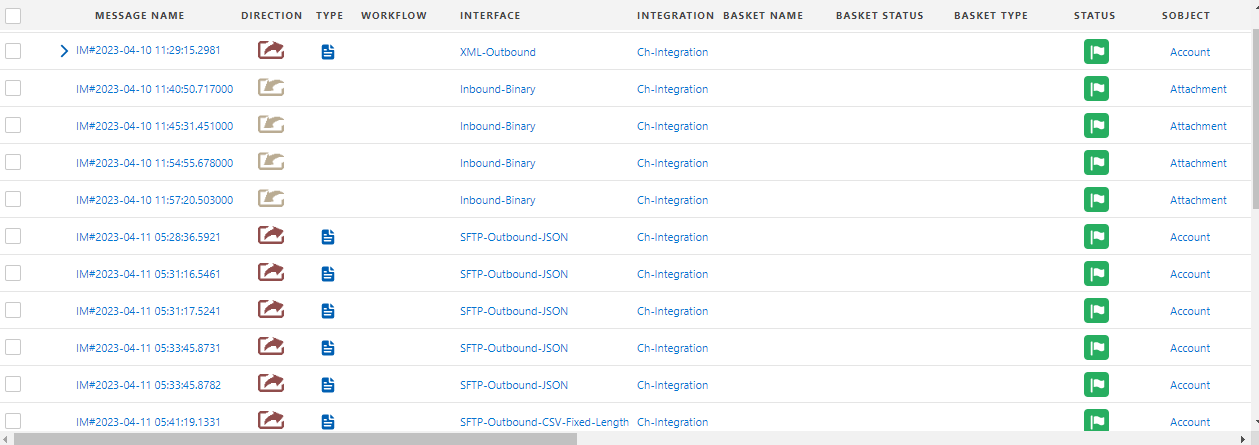
- Users can run tasks manually or you can use schedules to run them at a specific time or interval such as hourly, daily, or weekly. To use a schedule, you associate the task with a schedule when you configure the task. You can use an existing schedule or create a new schedule. If you want to create a schedule, you can create the schedule from the task’s Schedule Tab during task configuration.
- When the user creates a schedule, then specify the date and time. You can configure a schedule to run associated assets throughout the day between 12:00 a.m. and 11:55 p.m. SKYVVA Agent Services might add a small schedule offset to the start time, and all other time configurations. As a result, scheduled tasks and task flows might start later than expected.
- For example, the user configures a schedule to run hourly until noon, and the schedule your Salesforce organization by SKYVVA Agent Services.
- Extends the end time for the schedule to 12:00:10 p.m., and the last hourly task or task flow starts at 12:00:10 p.m.
- Users can monitor scheduled tasks from the All Jobs page in Monitor. Scheduled tasks do not appear on the Scheduler Tab.
- When users copy a task that includes a schedule, the schedule is not associated with the new task. To associate a schedule with the new task, edit the task.
- If the user removes a task from a schedule as the task runs, the job completes. Data Integration cancels any additional runs associated with the schedule.
Users will get a success message when data have been sent to salesforce correctly. This chapter guides us on how to find and how set the schedule on the agent control board.


