
Skip to content
  • Blog
  • Docs
  • Documentation
  • Imprint
SKYVVA Integration App – Documentation
SKYVVA Integration App - Documentation
  • Documentation
  • Zurück zur Webseite
  • Back to website
SKYVVA Integration App – Documentation
SKYVVA Integration App - Documentation
Popular Search how tohow to useagenthowdatarestformulacustombatchstore

SAP PI/PO Adapter

Tutorials (Lightning)

Agent Old Administration Guide

SAP Release Notes

Agent Release Notes

Agent - New Administration Guide

SAP CPI Adapter

SKYVVA Administration Guide (Lightning)

SKYVVA Release Notes

SAP/ERP | S4/HANA (Latest Version) Adapter

  • 1. Pre-Requisite
    • 1.1 Pre-Requisite
    • 1.2. Import/Deploy ABAP Transport In SAP
    • 1.3. Certificate for Secured Communications
    • 1.4. Setup Connection SAP SALESFORCE
    • 1.5 Activation of Skyvva service in SAP
    • 1.6 Create Connection Destination & SAP Adapter in Salesforce
    • 1.7 Activation of the “rfc” service service in SAP
  • 2. Create Metadata provider
    • 2.1. How to Create Metadata provider in Salesforce (Direct SAP->SF)
    • 2.2. How to Create Metadata provider in Salesforce Using AGENT
  • 3. IDOC Configuration
    • 3.1. IDOC Configuration in SAP
    • 3.2. IDOC Configuration in SALESFORCE (Direct SAP Connection)
    • 3.3. IDOC Configuration in SALESFORCE (Using AGENT)
  • 4. SAP to Salesforce (Using SAP Control Board)
    • 4.1 How to send data using IDoc?
    • 4.2 How to send data using BAPI, FM?
    • 4.3. How to use Batch mode?
    • 4.4 How to use Bulk mode?
    • 4.5 How to use Auto-Switch mode?
    • 4.6 How to use Salesforce Bulk mode?
  • 5. SAP to Salesforce (Using AGENT Control Board)
    • 5.1 How to send data using IDoc?
    • 5.2 How to send data using BAPI, FM?
    • 5.3. How to use Batch mode?
    • 5.4 How to use SFDC Bulk mode?
    • 5.5 How to use AUTO-SWITCH mode?
    • 5.6 How to use Salesforce Bulk mode?
  • 6. Salesforce to SAP(Using SAP Control Board)
    • 6.1 How to Call IDoc From Salesforce
    • 6.2 How to call S/4 HANA IDOC from Salesforce
    • 6.3 How to Call SAP ERP BAPI/FM From Salesforce
    • 6.4 How to call S/4 HANA BAPI from Salesforce
    • 6.5 How to call SAP REST API using Skyvva REST Adapter?
    • 6.6 How to call SAP SOAP API using Skyvva SOAP Adapter?
  • 7. Salesforce to SAP(Using Agent Control Board)
    • 7.1 How to Call SAP ERP IDoc From Salesforce
    • 7.2 HOW TO CALL SAP S/4 HANA IDOC FROM SALESFORCE
    • 7.3 How to Call SAP ERP BAPI/FM From Salesforce
    • 7.4 HOW TO CALL SAP S/4 HANA BAPI FROM SALESFORCE
    • 7.5 HOW TO CALL SAP REST API USING SKYVVA REST ADAPTER?
    • 7.6 How to call SAP SOAP API using Skyvva SOAP Adapter?
  • How to develop inbound interface using FM/RFC/Report with the multi-itab adapter synchronously?
    • 13. How to develop inbound interface using FM/RFC/Report with the multi-itab adapter synchronously?
    • a. Direct SAP to SALESFORCE
    • b. Using AGENT
  • DEBMAS IDOC Sending from SAP -> SF
    • 14. DEBMAS IDOC Sending from SAP -> SF
    • a. Direct SAP to SALESFORCE
    • b. Using Agent
  • ORDRSP IDOC Sending from SAP -> SF
    • 15. ORDRSP IDOC Sending from SAP -> SF
    • a. Direct SAP to SALESFORCE
    • b. Using Agent
  • DESADV IDOC Sending from SAP -> SF
    • 16. DESADV IDOC Sending from SAP -> SF
    • a. Direct SAP to SALESFORCE
    • b. Using Agent
  • INVOIC IDOC Sending from SAP -> SF
    • 17. INVOIC IDOC Sending from SAP -> SF
    • a. Direct SAP to SALESFORCE
    • b. Using Agent
  • Generic Use of Multit-Tab
    • 8. Generic Use of Multit-Tab
  • Inbound Interface using Bulk Mode
    • 2. HOW TO DEVELOP INBOUND INTERFACE USING Bulk Mode (SAP Control Board)
    • 1. HOW TO DEVELOP INBOUND INTERFACE USING BULK MODE (AGENT CONTROL BOARD)
  • Inbound Interface using Batch Mode
    • 1. HOW TO DEVELOP INBOUND INTERFACE USING Batch MODE (AGENT CONTROL BOARD)
    • 2. HOW TO DEVELOP INBOUND INTERFACE USING BATCH MODE (SAP CONTROL BOARD)

SAP-ERP (Old Version) Adapter

Mule Adapter

Migration from SAP-PO SOAP Skyvva connector to REST connector module

View Categories
  • Home
  • Documentation
  • SAP/ERP | S4/HANA (Latest Version) Adapter
  • 1. Pre-Requisite

1.2. Import/Deploy ABAP Transport In SAP

This unit describes:-
How to import skyvva transports into SAP

Introduction:- #

In this chapter, you will learn about the “import skyvva transports into sap. Manually Importing Transports into SAP – you will receive transport files from Skyvva Team ,who have developed custom solutions for SAP and you will be required to import their transports into your SAP System manually.

Import skyvva transports into sap #

You will receive transport files from Skyvva Team,  you did the following steps:

  1. Unzipped the transport file sent through by the developer
  2. This gave me four files:
      1. IDB
      2. IDB
      3. NWA
      4. NWA
  3. Naming convention used is R<6 digits>.<source system> and K<6 digits>.<source system>  (The Source system is the developers source system)
    a. K Type Transport = Cofile – Normally only 1 – 3 KB
    b. R Type Transport = Datafile – Normally more than the Colfile
  4. IDB and K900326.NWA were a Cofile –  it doesn’t contain much data, it has the attributes of the data file stored in it. Command or change request information files that include information on the transport type, object classes, required import steps, and post-processing exit codes
  5. IDB and K900326.NWA were a Datafile – This contains the actual data for the Transport – what changes will be made in your system.
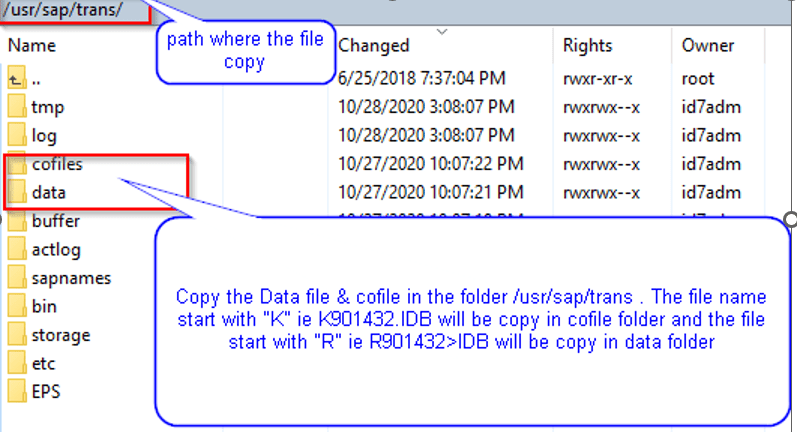
  6. Go to the Development Server and navigated to the following directory: D:\usr\sap\trans.
    a. Copy the K Type Transport to Cofile folder located in D:\usr\sap\trans\cofile .
    b. Copy the R Type Transport into the data folder located in D:\usr\sap\trans\data .
  7. Go into the SAP ECC Dev System and proceed to transaction STMS
  8. Proceed to import queue (F5 then Select Dev System)
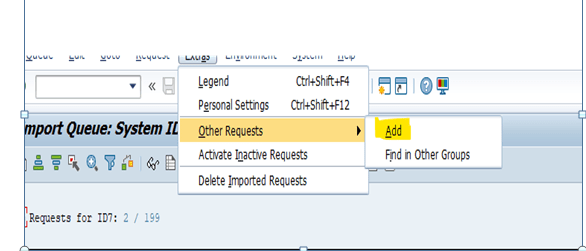
  9. Go to the Extras Menu, Select Other Requests then select Add
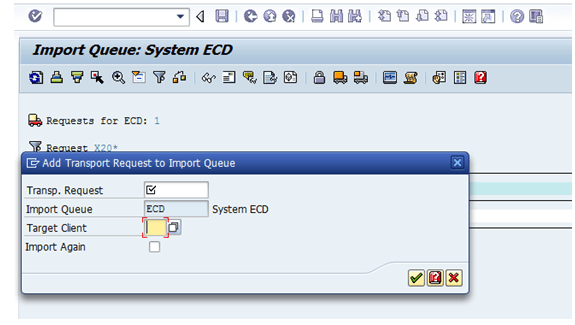
  10. This will show the following screen, enter your target client (in our case it is 100 as the  golden development system)
  11. Then select the Transport request search button
    1. Search for your transports by entering the * at the start for a wildcard selection and then putting in the digit code in the transport file – ie *901432 don’t include the .
      IDB extension, this will likely show up as the transport prefix) and lastly ensure you pump up your number restriction to a number that will give you the result you are after.
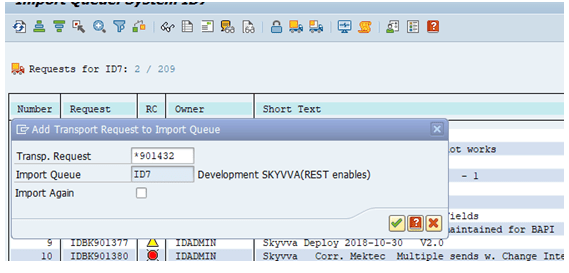
    1. Find your transport number and select it
    2. Then you will end up with a screen like below with your transport request filled out, target client and import queue filled out. You can if you want select import again if you are re-importing this transport.
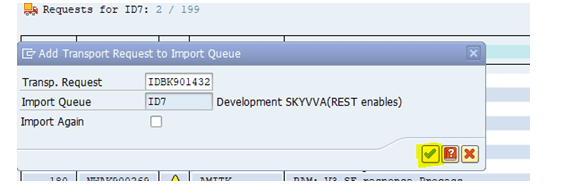
    1. Click Yes when asked to attach to import queue.

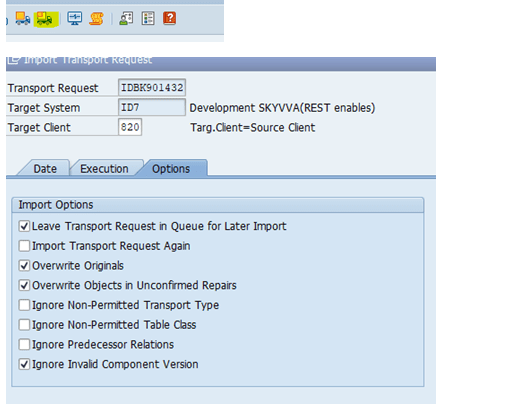
    1. Then once it is attached to the import buffers, import the transport then use the forward transport options from the menu system to send the transport to QA for testing
Share This Article :

  • Facebook
  • X
  • LinkedIn
1.1 Pre-Requisite1.3. Certificate for Secured Communications
Table of Contents
  • Introduction:-
  • Import skyvva transports into sap

Copyright © 2026 | Apsara Consulting GmbH | All rights reserved

  • Imprint
  • Zurück zur Apsara Webseite
  • Back to Apsara website